Spotify Data Saver
Spotify data saver cuts how much mobile data the app uses. It shows fewer images and lowers audio quality. It does not delete playlists, and it is not the same as downloading music for offline. This guide follows Spotify’s own data page, including the switches that matter more than the one labeled Data saver.
What Data Saver Changes
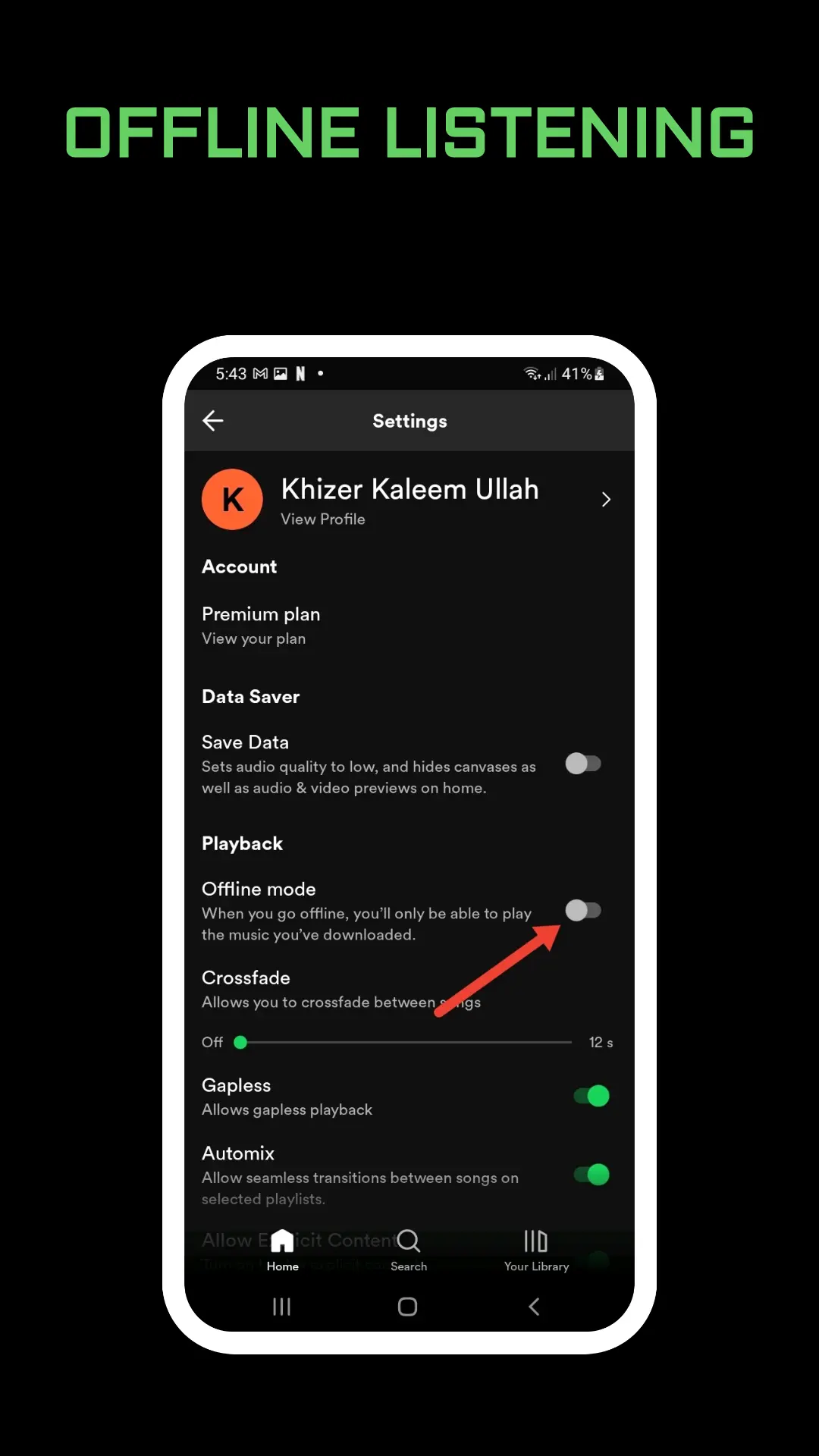
Spotify says the app needs Wi-Fi or mobile data. Wi-Fi is the better default. When you are not on Wi-Fi, the app uses your phone plan. Data saver is the quick switch for that case. It reduces images and reduces audio quality so a commute uses less data than a full-quality stream.
Turn it on like this:
- Tap your profile picture at the top.
- Tap Settings and privacy.
- Tap Data-saving and offline.
- Switch Data saver on.
You will notice softer cover art and thinner sound. That is the trade. Switch it off when you are on home Wi-Fi and you want the picture and the audio back. Data saver is a phone setting. It does not change the account for every device at once.
Video Podcasts and Audio-Only
A video podcast can burn data even when you only wanted the talking. In the same Data-saving and offline screen, under Downloads and streaming, Spotify lets you switch on audio-only streaming, audio-only downloads, or both for video podcasts. The episode still plays. The picture does not come down with it.
Use that switch if your data bill jumps on show days and the music quality was already low. Data saver and audio-only solve different files. One is the whole app. The other is video podcasts.
Downloads Beat Streaming on a Commute
Spotify’s stronger tip, if you have Premium, is to download music and listen offline. A download uses data once, on Wi-Fi if you set it that way. After that the phone does not need a stream.
In Data-saving and offline, switch Downloads over cellular off so the app waits for Wi-Fi before it saves files. Then download the playlist at home. The tap-by-tap for the download arrow, and the five-device limit, are in how to download songs from Spotify.
Offline files are not the same as Data saver. You can use both. Data saver helps when you still have to stream. Downloads help when you can plan ahead. If a download will not start, you may be on cellular with that switch off, which is what you asked for. Join Wi-Fi and try again.
Quality, Autoplay, and Canvas
Three more controls sit next to Data saver, and Spotify lists them on the same help page.
- Media quality. Higher audio uses more data. Open Media quality and pick a lower level for cellular if Data saver is not enough. Lossless is the heavy end of that scale, and it is a Premium option. See Spotify Lossless before you leave cellular on the highest setting.
- Autoplay. Switch Autoplay off in settings so Spotify does not keep playing after the album or playlist you chose. Those extra songs are extra data.
- Canvas. The moving art on Now Playing is called Canvas. Spotify says the loops are short, use very little data after the first loop, and do not keep running in the background. If you still want them gone, the off switch is under Content and display, not under Data saver. The full steps are in Spotify Canvas.
Data saver itself can hide Canvas, because Canvas will not show while Data saver is on. If the visuals vanished and you did not mean to turn them off, check Data saver first.
Abroad, Roaming, and the Phone’s Own Saver
Spotify says to use Wi-Fi when you use the app abroad, and to read your mobile plan for roaming charges. Data saver lowers use. It does not make roaming free. Download the trip playlist before you fly.
Your phone may also have a system data saver that limits Spotify even when the app switch is off. If streams fail only on mobile data, check the phone’s settings as well as Spotify’s. A battery saver can pause the app in the background too. That pause feels like a data bug and is often a power bug. The checks are in why Spotify keeps pausing.
What Data Saver Does Not Do
It does not cancel Premium. It does not delete Liked Songs. It does not change who can see your listening. If the goal is privacy, use a Spotify private session. If the goal is a smaller bill from a Premium plan you no longer want, that is a different page: how to cancel Spotify Premium. Canceling keeps your playlists and moves you to the free plan at the next billing date, unless you are in a zero-price trial.
The queue of songs you lined up still exists. Data saver may make those streams lighter. It does not clear them. Edit that list with Spotify queue.
Frequently Asked Questions
Where is Spotify data saver?
Profile picture, Settings and privacy, Data-saving and offline, then Data saver.
Does Data saver download my music?
No. It only makes streaming lighter. Downloads are a separate control, and offline downloads need Premium.
Why did Canvas disappear?
Canvas does not play while Data saver is on. Switch Data saver off, then check Content and display if the loops are still missing.
Final Thoughts
Turn Data saver on for mobile data, keep downloads on Wi-Fi, and lower Media quality on cellular if the bill is still high. Leave the switch off at home when you want full artwork and fuller sound.