Spotify Private Session: Hide What You Are Listening To
A Spotify private session hides what you are playing from the people who follow you. Friend Activity stops showing the current song, and your profile does not update with that listening in real time. The account, playlists, and recommendations stay. This guide shows how to turn a private session on and off, how long it lasts, and what to change if you want listening hidden all the time.
What a Spotify Private Session Actually Hides
By default, followers can see what you are listening to through Friend Activity. A private session pauses that sharing. It is a temporary switch, not a delete button. Your own library does not change, and Spotify can still use listening to build recommendations for you.
It also does not hide a playlist you already published. If a playlist is public, people who have the link can still open it. Private session and playlist privacy are two different controls, and this article covers both.
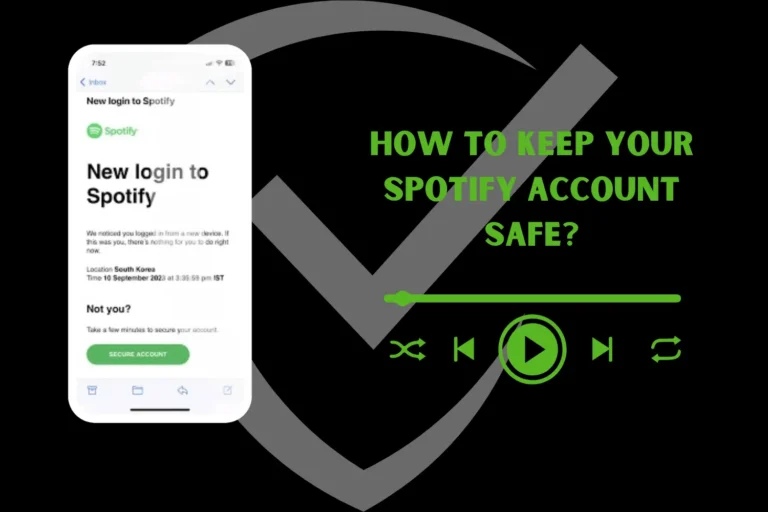
If your worry is a stranger on a shared phone rather than a follower, start with the account itself. The steps in how to keep your Spotify account safe cover passwords, sign-out, and shared devices.
How to Start a Private Session on Mobile
- Open Spotify and tap Home.
- Tap your profile picture. On most phones it sits at the top of the screen.
- Tap Settings and privacy.
- Under Privacy and social, turn Private session on.
To show your listening again, repeat the same path and switch it off. You do not need to reinstall the app.
How to Start a Private Session on Desktop
- Open the Spotify desktop app.
- Click your profile picture in the upper right.
- Select Private session.
A padlock next to your profile picture means the session is active. Click the same menu item again when you want followers to see what is playing.
How Long a Private Session Lasts
This is the detail most people miss. A private session is not permanent.
- On mobile it ends when you fully quit Spotify, or after about 6 hours of inactivity.
- On desktop it ends when you quit the app, or after a long idle period.
Locking the phone is not the same as quitting the app. If Spotify keeps running in the background, the session can stay on. If you force-close the app, expect the next launch to share listening again until you turn the switch back on.
Hide Listening All the Time
If you do not want to flip Private session on every morning, turn off sharing in Social settings.
- Open Settings and privacy.
- Open the Social section.
- Turn off the option that shares your listening activity and recently played artists.
Spotify says this affects what appears on your profile and in Friend Activity. It does not erase your account, and it does not make a public playlist private. Your own recap still exists. If you want to see that recap before you change anything, use how to find Spotify Wrapped.
Make a Playlist Private
Friend Activity and the playlist page are separate. A private session will not pull a public playlist out of search.
- Open the playlist you own.
- Tap the three-dot menu on the playlist page.
- Choose the option to make the playlist private, or remove it from your profile if you only want it off your public page.
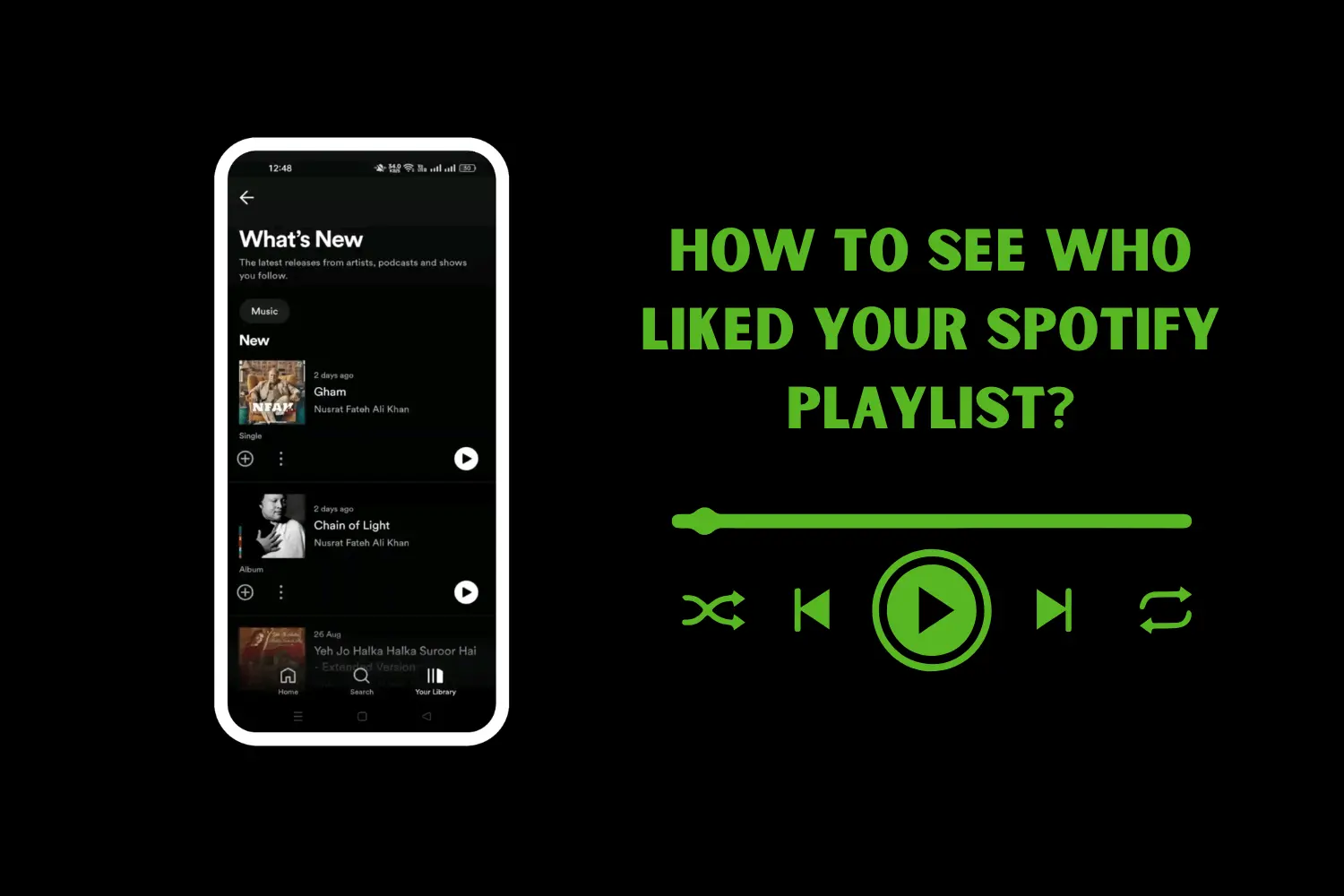
A fully private playlist is hidden from search, and only you can open it. A playlist that is public but removed from your profile can still be opened by anyone with the link. Likes on a public playlist are a different view. Here is how to see who liked your Spotify playlist if you want that list before you hide the playlist.
Private Session, Jam, and Recommendations
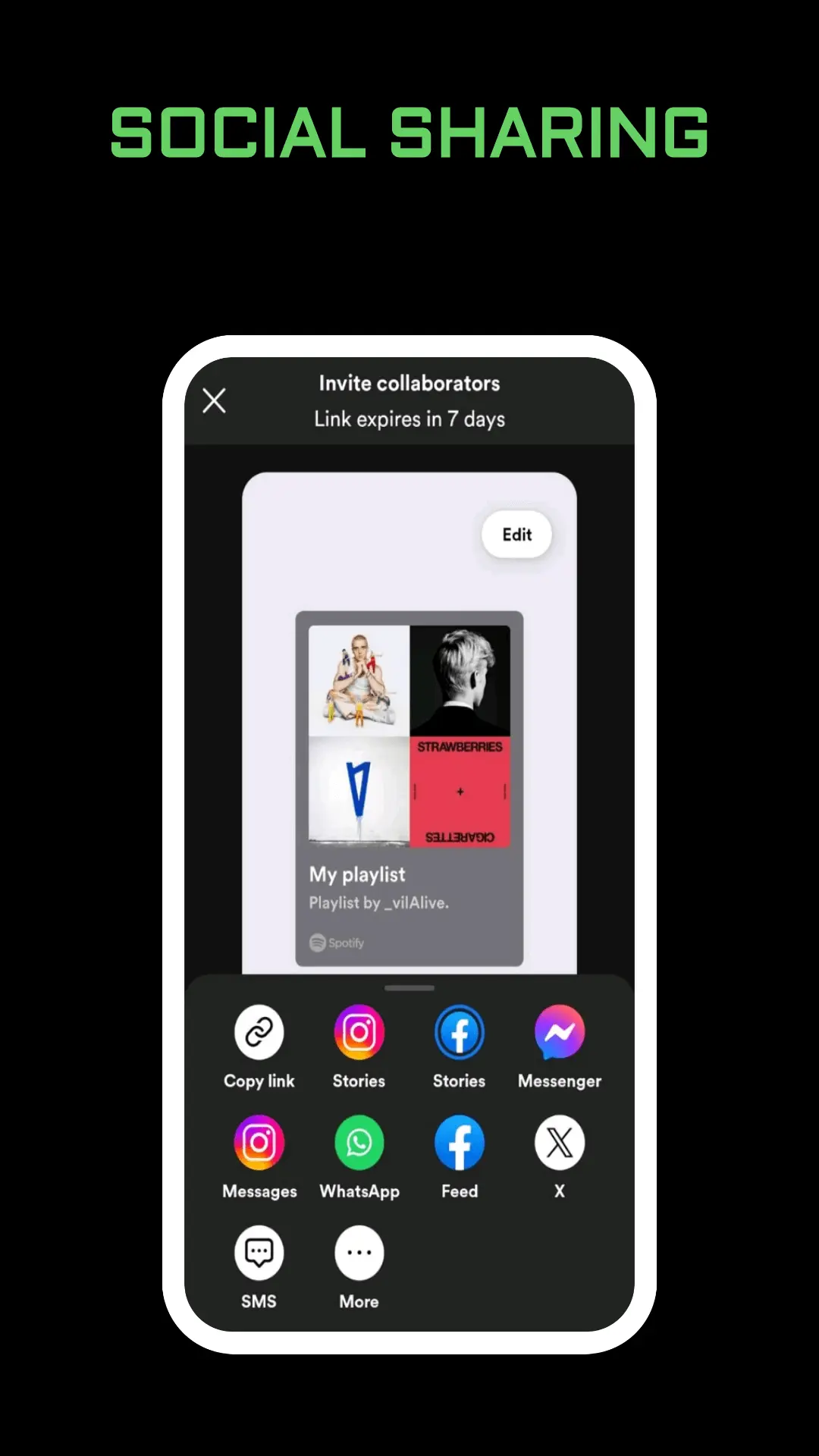
Listening together uses the opposite idea. A Jam is a shared queue, and the people you invite can see the songs in that session. If you want a group queue, follow how to use Spotify Jam and send the invite only to people who should be in it. Leave the private session off while you host, or guests can get confusing device prompts.
Private listening does not block an artist. If one artist keeps taking over your home screen, block or unblock that artist instead of hiding your whole account.
You can also exclude a playlist from your taste profile, from the playlist menu. Spotify then gives those plays less weight in recommendations such as Discover Weekly. That change is about your own suggestions, not about what followers see, and it can take up to 48 hours to settle.
When the Switch Seems to Do Nothing
- Update the app. Older builds hide the control in a different menu.
- Confirm you are on the account your friends actually follow. A second login is a common mix-up.
- Quit Spotify completely and turn the session on again. A half-closed app sometimes keeps the old state.
- Remember the timer. If it has been hours since you opened the app, the session may already have ended.
Frequently Asked Questions
Can followers see my Spotify listening during a private session?
No. Friend Activity should not show the song you are playing while the session is on. When the session ends, sharing starts again.
Does a private session delete my history?
No. It only hides live activity from other people. Your library and your own stats stay on the account.
Why does private session turn off by itself?
Spotify ends it when you fully exit the app, or after several hours without activity. Turn it on again, or disable listening sharing in Social settings if you want it off for good.
Final Thoughts
Use a Spotify private session when you want a few hours of listening that followers cannot see. Use the Social setting when you want that privacy every day, and make the playlist private when the playlist itself should leave search. None of these steps deletes the account, so your playlists stay put.