How to Use Spotify Jam: Start, Join and Fix Problems (2026 Guide)
Spotify Jam lets a group of people add songs to one shared queue and listen together, whether you are on the same sofa or in different countries. If you are wondering how to use Spotify Jam, the short answer is this: a Premium user starts the Jam from a song or playlist, shares a link or QR code, and everyone who joins can add tracks from their own phone or computer. This guide walks through every step, explains who needs Premium, and shows how to fix the most common problems.

What Is Spotify Jam?
Jam is a real-time listening session built into the Spotify app. Instead of one person controlling the music, everyone in the session can add songs to the queue and see who added which track. Spotify also suggests songs based on the overlap between everyone’s listening tastes, so the queue rarely feels random. The host can decide who is in the Jam, change the order of tracks, and remove songs that do not fit the mood.
Jam works on mobile and desktop. It also works with smart speakers and most Bluetooth speakers, which makes it popular for parties, road trips and study sessions. If you already control music with your voice, our guide on how to connect Spotify to Alexa covers the speaker side of the setup.
Who Needs Spotify Premium for a Jam?
This is the part that confuses most people, so here it is clearly:
- Hosting a Jam: requires an active Premium subscription.
- Joining in person: Free and Premium users can join a Jam hosted by a Premium user when they are in the same place.
- Joining remotely: requires Premium, because the listener is playing the music on their own device.
If your group shares a plan, a Family or Duo subscription is the cheapest way to give everyone Premium. You can learn how to add or remove a member in a Spotify Family Plan in a few minutes.
How to Start a Spotify Jam
On Mobile
- Open Spotify and start playing a song, or open one of your favorite public playlists.
- Tap the device icon on the Now Playing screen, or tap the three-dot menu on the playlist.
- Tap Start a Jam.
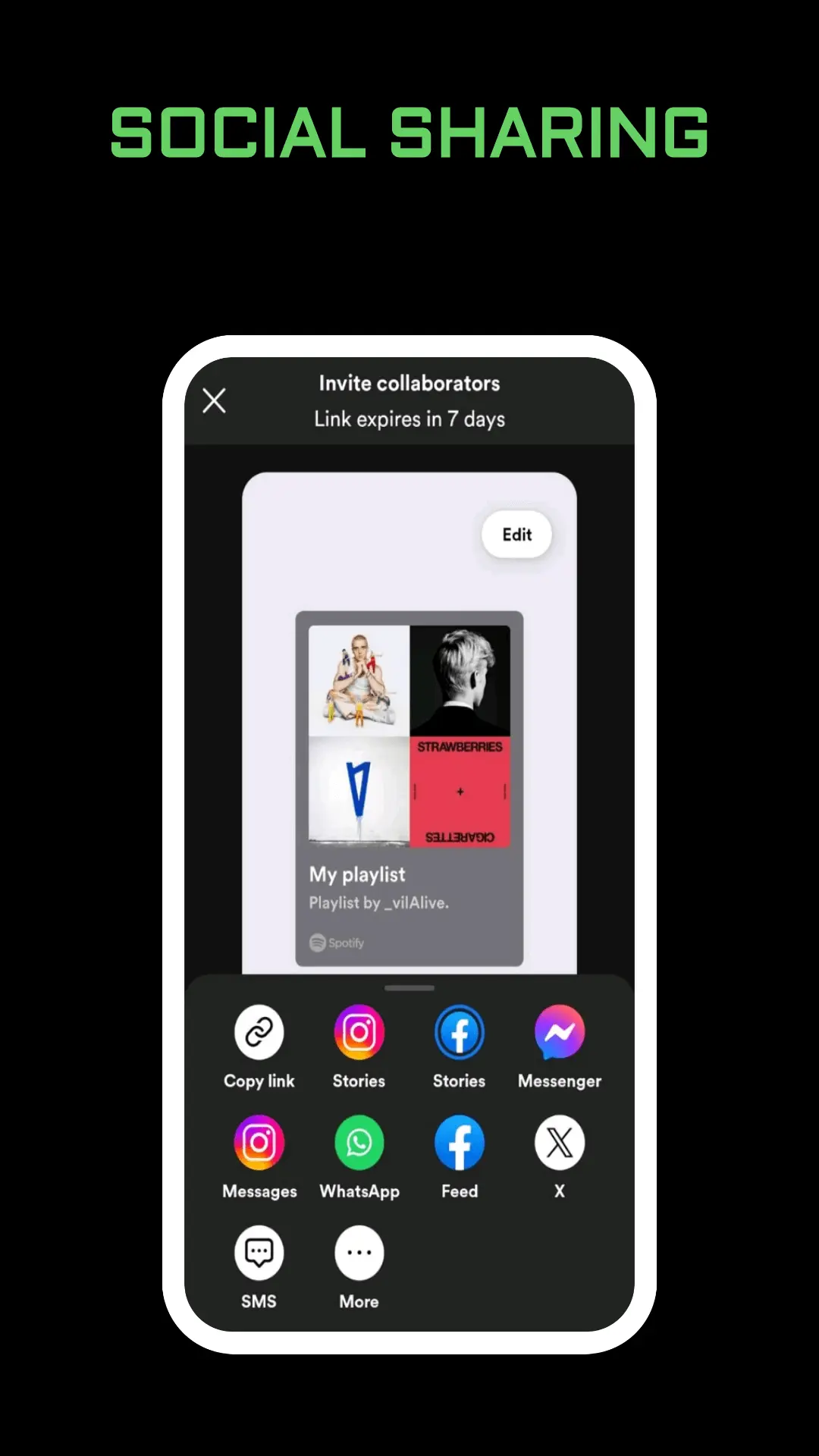
- Tap Invite to show a QR code or share a link by text, social media or any messaging app.
On Desktop
- Right-click a track or playlist.
- Select Start a Jam.
- Click Invite, then share the QR code or the link.
There is also a quick method for people in the same room. If you are logged in and Bluetooth is on, you can bring two phones close together, within about one meter, and the other person is prompted to join. Anyone on the same Wi-Fi network may also see an invitation automatically.
How to Join a Spotify Jam
- Tap the invite link, scan the QR code, or bring your phone close to the host’s phone.
- Choose whether you are listening in person or remotely. Remote listening needs Premium.
- Tap Join.
- Add your own songs, or pick from the recommendations Spotify shows you.
Before you share your link widely, remember that anyone with it can add songs and control what plays. Only send it to people you trust. Good account habits matter here too, so take a look at how to keep your Spotify account safe if you often use Spotify on shared devices.
Spotify Jam vs. Spotify Blend
People often mix up these two features, but they solve different problems.
- Jam is live. Everyone adds songs to a queue right now, and the session ends when the host leaves.
- Blend is a playlist. It combines the music you and up to ten friends listen to, and it refreshes daily based on everyone’s activity.
To create a Blend on mobile, go to Your Library, tap the plus icon, choose Blend, and send the invite link. On desktop, go to Search, open Made for You, and select Create Blend. If you like seeing what your friends enjoy, you may also want to read how to see who liked your Spotify playlist.
Spotify Jam Not Working? Try These Fixes
You Cannot Host a Jam
Check that your Premium subscription is active and that you picked the right speaker or device from the list of available devices. A lapsed subscription is the most common cause.
You Cannot Join a Jam
Make sure you accepted the invitation from the host and that you are connecting to the correct device. If you are joining from another country, remember that remote joining needs Premium.
You Cannot Control the Volume
Shared volume control only works if your speaker supports it and the host has turned it on in the Jam settings.
The Link or QR Code Does Nothing
Update the Spotify app on both phones, since Jam needs a recent version. If it still fails, close the app completely, reopen it and try the link again. As a last step, do a clean reinstall of the app and sign in again.
Frequently Asked Questions
Is Spotify Jam free?
Joining in person is free. Hosting a Jam, or joining remotely, requires Premium.
How many people can join a Spotify Jam?
Spotify lets you invite a group of friends or family. Free and Premium users can be mixed in the same session.
Can I use Jam on a speaker?
Yes. Jam works with smart speakers and most Bluetooth speakers, and Spotify may start a Jam automatically when you connect to one.
Final Thoughts
Now you know how to use Spotify Jam from start to finish: start it from a song or playlist, invite people with a link, QR code or Bluetooth, and let everyone add tracks. Remember that hosting needs Premium, in-person guests can join for free, and Blend is the better choice if you want a playlist rather than a live session. Try it at your next gathering, and share this guide with the friend who always controls the music.