Spotify Canvas
Spotify Canvas is the short looping visual that replaces cover art on Now Playing. Artists make the clips. They are not music videos, they use very little data after the first loop, and they only play in the mobile app. This guide shows how to turn Canvas off, how to get it back, and why a song can still have no loop at all.
What Canvas Is
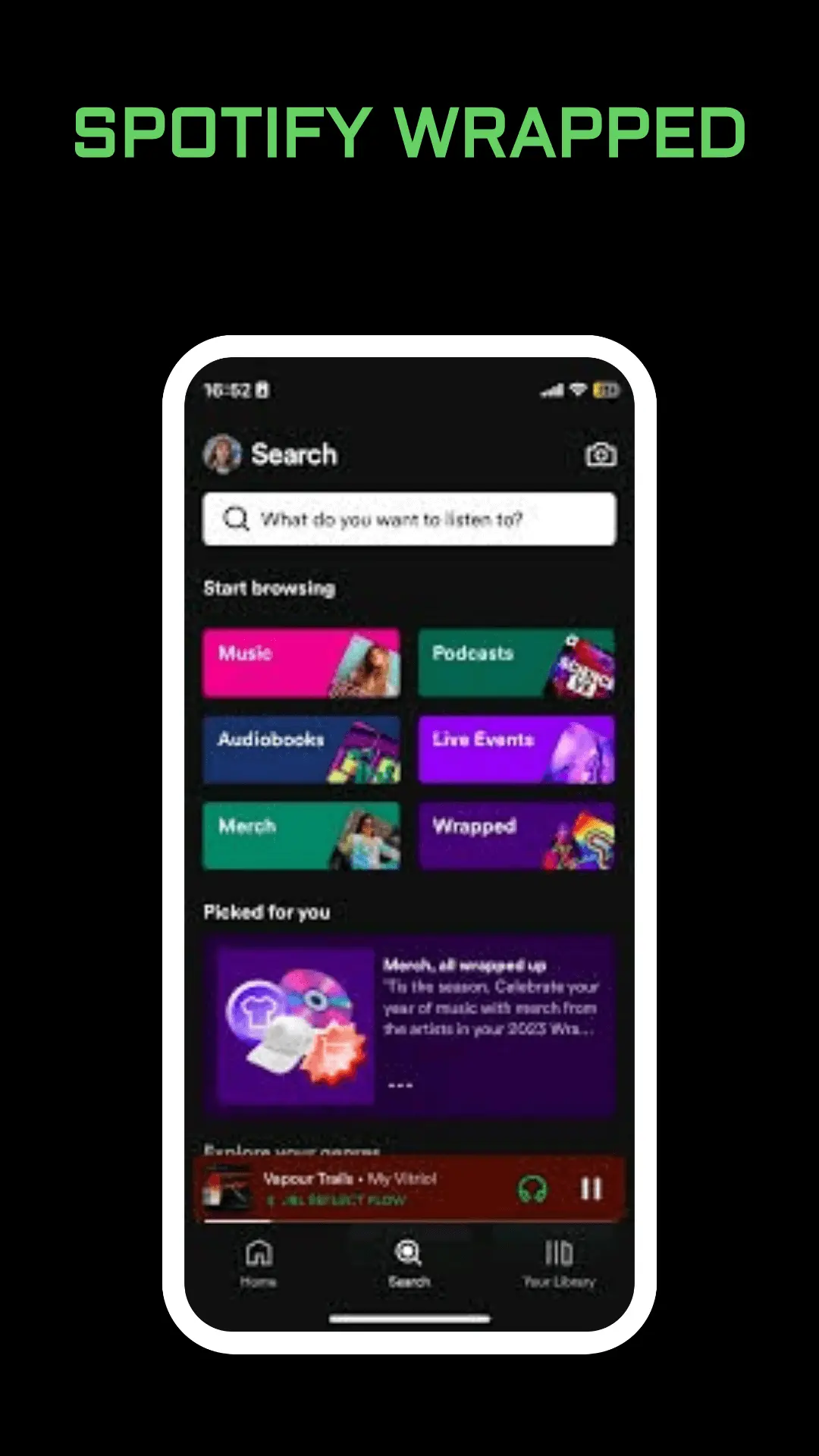
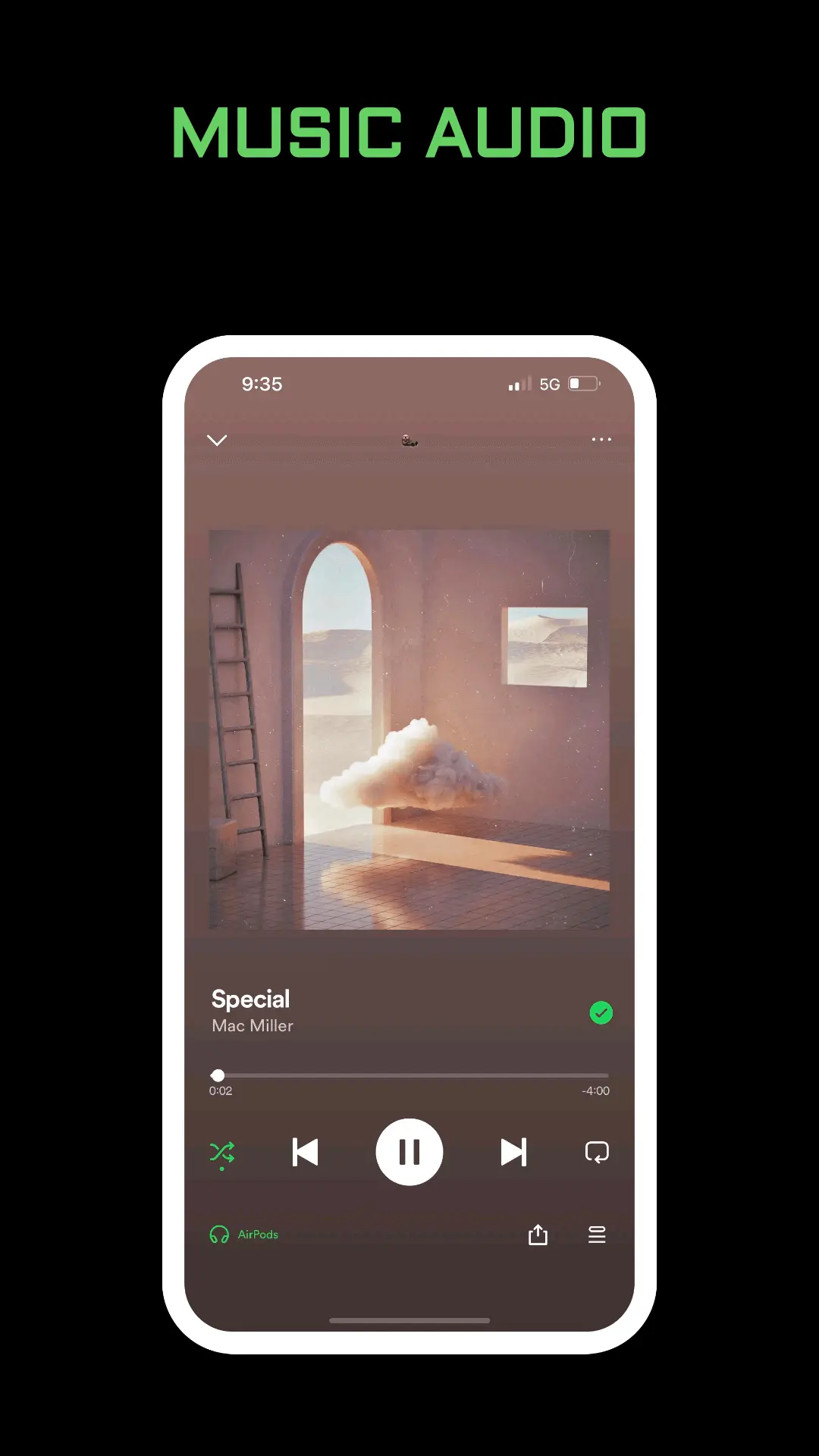
Spotify describes Canvas as moving visuals in Now Playing, a short artistic loop for a track. The clip starts when you play a song that has one. After it has looped once, Spotify says it does not need more data to keep playing, and it does not keep running in the background after you leave the screen.
Canvas is not lyrics, and it is not a full music video. Lyrics are words you open on the track. A video is a different playback mode. Canvas sits in the art area. If you only wanted the words, open them with Spotify lyrics.
Listeners in Indonesia are on Spotify’s Canvas country list, along with many other places in Asia, Europe, and the Americas. If you are traveling, a country that is not on that list will not show the loops even when your home account does.
Where Canvas Plays
Spotify’s artist help page limits playback to the mobile app, on iOS 12 or later and Android 6.0 or later. A desktop player can show a setting for the visuals, but the loops themselves play in the mobile app. A speaker or TV you start with Spotify Connect is not the mobile app, so the loop stays on the phone.
If the phone meets those versions and the art stays still, update the Spotify app and try a track you know has a loop.
How to Turn Spotify Canvas Off
On a phone:
- Tap your profile picture at the top.
- Tap Settings and privacy.
- Under Content and display, switch Canvas off.
On a computer:
- Click your profile picture and open Settings.
- Under Display, switch off Display short, looping visuals on tracks (Canvas).
The phone switch is the one that changes what you see in Now Playing. Use it when the motion is distracting on a train or when you want the still cover. Turning it off does not unlike the song or change recommendations.
How to Turn Canvas Back On
Spotify’s checklist for a missing Canvas is short.
- Open the mobile app. Desktop will not play the loop.
- Confirm the phone is iOS 12 or newer, or Android 6.0 or newer.
- Tap your avatar, then Settings and privacy.
- In Data-saving and offline, set Data saver to off. Canvas does not show while Data saver is on.
- In Content and display, turn Canvas on.
Data saver is the switch people forget. It is there to cut images and audio quality, so the moving art is one of the things it drops. The rest of that screen, including offline downloads, is in Spotify data saver. Turn Data saver off only when you are willing to use a bit more data for the loops. Spotify says the extra use is small after the first play.
When the Song Has No Loop
Settings can be perfect and the cover can still be still. Not every track has a Canvas. The artist has to upload one for that recording. A live version, a remix, or an older upload often has none. Try the single you know has a loop. If that one moves and the album track does not, the file is the limit, not your account.
Labels with split rights can attach Canvas only to the version they own. As a listener you just pick another version of the song. You cannot add a Canvas yourself from the phone.
A private session does not remove Canvas. It hides live listening from followers. The loop is still on your screen. Those privacy steps are in Spotify private session.
Canvas, Data, and Battery
Spotify’s data page says the clips are short and looping, so they use very little data, and they stop when they are not on screen. If your bill is the real problem, Canvas is a small piece. Download playlists on Wi-Fi, lower cellular quality, and switch Autoplay off. Those steps save more than hiding one loop. Downloads are explained in how to download songs from Spotify.
If the app feels hot, leave Now Playing. The loop is not supposed to run in the background. A hot phone that continues after you close Now Playing is more likely a stream or a battery setting than Canvas. Check why Spotify keeps pausing if audio is the thing that fails, not the picture.
Frequently Asked Questions
Does Spotify Canvas work on a computer?
The loop plays in the mobile app. Desktop has a display switch for the visuals, but Spotify says Canvas playback is mobile, on iOS 12 or later and Android 6.0 or later.
Why did Canvas vanish after I saved data?
Data saver turns it off. Set Data saver to off, then turn Canvas on under Content and display.
Can I upload a Canvas?
No. Artists add Canvas to their own recordings. Listeners can only show or hide the loops the artist already published.
Final Thoughts
Leave Canvas on if you like the loop, and turn it off under Content and display if you want the still cover. If it will not come back, turn Data saver off, update the mobile app, and try a song you know has a clip. A speaker on Spotify Connect will not show it.