
Why Does Spotify Keep Pausing? 9 Easy Fixes That Work
If Spotify keeps pausing in the middle of a song, you are not alone. It is one of the most common playback problems, and it usually comes from a small setting rather than a broken app. This guide explains why it happens and gives you nine fixes in the order that solves the problem fastest, for both phones and computers.

Why Does Spotify Keep Pausing?
Several things can interrupt playback. The most frequent causes are:
- Offline mode switched on by accident.
- A weak or unstable internet connection.
- Battery saver or background restrictions on your phone.
- Full or corrupted app cache.
- An outdated Spotify app or device software.
- Someone else playing music on the same account.
Work through the fixes below from the top. Most people solve it within the first three.
Fix 1: Check That Offline Mode Is Off
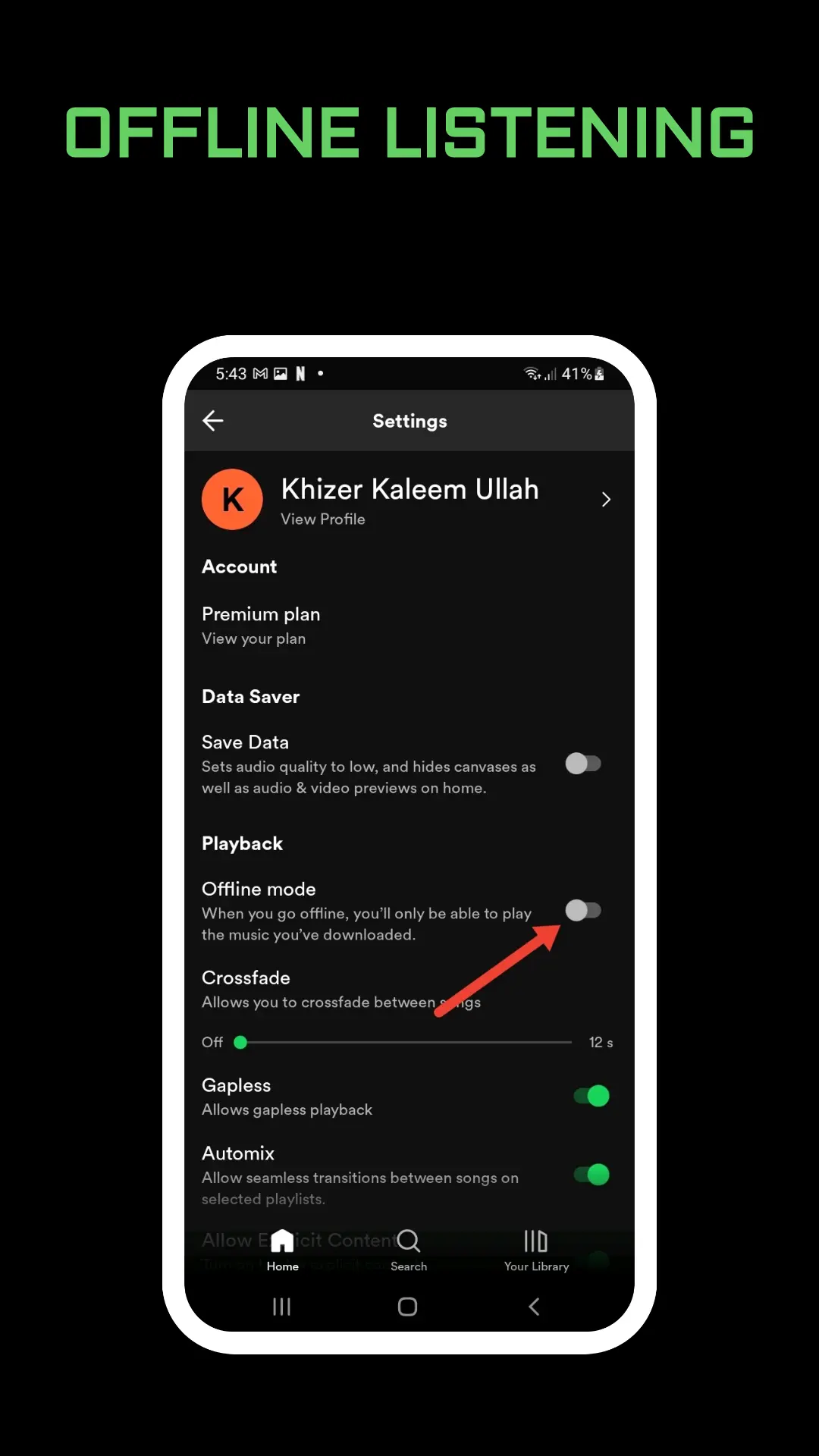
Offline mode makes Spotify play only downloaded music, and everything else turns gray and stops. On mobile, tap your profile picture, open Settings and privacy, then tap Data-saving and offline. If Offline mode is on, switch it off. On Windows, click the three-dot menu and then File. On Mac, open the Spotify menu at the top of the screen. Turn Offline Mode off if it is selected.
Fix 2: Restart and Update Spotify
Close the app completely and open it again. Then update Spotify from the App Store or Google Play. Old app versions can have bugs that were already fixed. Updating your phone or computer’s operating system also helps, because it keeps the app compatible with your device.
Fix 3: Test Your Internet Connection
If other apps or web pages are slow too, the problem is your connection and not Spotify. Turn Wi-Fi off for 30 seconds and back on, restart your router, and switch between Wi-Fi and mobile data to see which one works. Shared networks at schools and offices sometimes restrict streaming services. Also switch off any VPN while testing, because a VPN can interfere with the stream.
Fix 4: Turn Off Battery Saver and Allow Background Activity
Phones often stop apps in the background to save power, which makes music pause after the screen locks. On Android, open Settings, go to Apps, choose Spotify and set battery usage to unrestricted. On iPhone, open Settings, then General, then Background App Refresh and enable it for Spotify. Cleaner or battery-saving apps can cause the same problem, so turn them off or add Spotify as an exception.
Fix 5: Clear the Spotify Cache
A damaged cache is a very common reason for random stops. In the app, go to Settings and privacy, open Data-saving and offline, and tap Clear cache under Storage. Your downloads stay on the device when you clear only the cache. Restart the app afterward and play a song for a few minutes to check.
Fix 6: Check Whether Someone Else Is Using Your Account
Spotify can play on only one device at a time per account. If a friend, a family member or an old device starts playing, your music will pause. Sign out of all devices from your account page, then sign back in on your own device. After that, change your password. Our guide on how to change and reset your Spotify password takes about two minutes, and our tips to keep your Spotify account safe help you prevent it from happening again.
If several people in your home listen at once, a proper plan is the clean solution. See how to add or remove a family member in a Spotify Family Plan so everyone has their own login.
Fix 7: Free Up Memory and Storage
Spotify needs at least 250 MB of free memory to run smoothly, and a device with a low battery can also behave badly. Close apps you do not use, delete files you do not need and charge the device. If your phone has an SD card, remove it for a moment, because a faulty card can cause playback errors on Android.
Fix 8: Change the Audio Quality Setting
On a weak connection, high audio quality can cause constant buffering and pauses. Open the app settings, find the audio quality section and switch from High or Very High to Automatic or Normal. If you often listen where the signal is poor, downloading your playlists in advance is even better. Here is our step-by-step guide to downloading songs from Spotify with a Premium plan.
Fix 9: Do a Clean Reinstall
If nothing else works, reinstall the app. Clear the cache inside the app first, delete Spotify in your device settings, and on Android also remove the com.spotify.music folder from Android > data if it is still there. Restart the device and install Spotify again from the official store. You will need to download your music and podcasts again afterward, so do this last.
Spotify Pauses on Speakers and Smart Devices
On a Bluetooth speaker, car system or smart speaker, pausing is often caused by a weak pairing or by another phone taking over the connection. Forget the device, pair it again, and keep only one phone connected. If you use voice control, the steps in how to connect Spotify to Alexa can help you rebuild the link from scratch.
Frequently Asked Questions
Why does Spotify pause when I lock my phone?
Usually battery saver or background restrictions are closing the app. Allow Spotify to run in the background and disable battery optimization for it.
Will I lose my playlists if I reinstall Spotify?
No. Playlists and saved music are stored in your account. Only your downloaded songs are removed, and you can download them again.
Final Thoughts
When Spotify keeps pausing, start with the simple checks: offline mode, connection and battery settings. Then move on to cache, account security and a clean reinstall. Following the fixes in this order saves time and gets your music playing without interruption.