
Spotify Queue: Add, Reorder, and Clear What Plays Next
The Spotify queue is the list of what plays next. It is not the playlist itself. You can add a song, drag it up, take it off, or clear everything you added. On mobile, Spotify documents those controls for Premium. This guide follows the current help page for phones and for desktop.
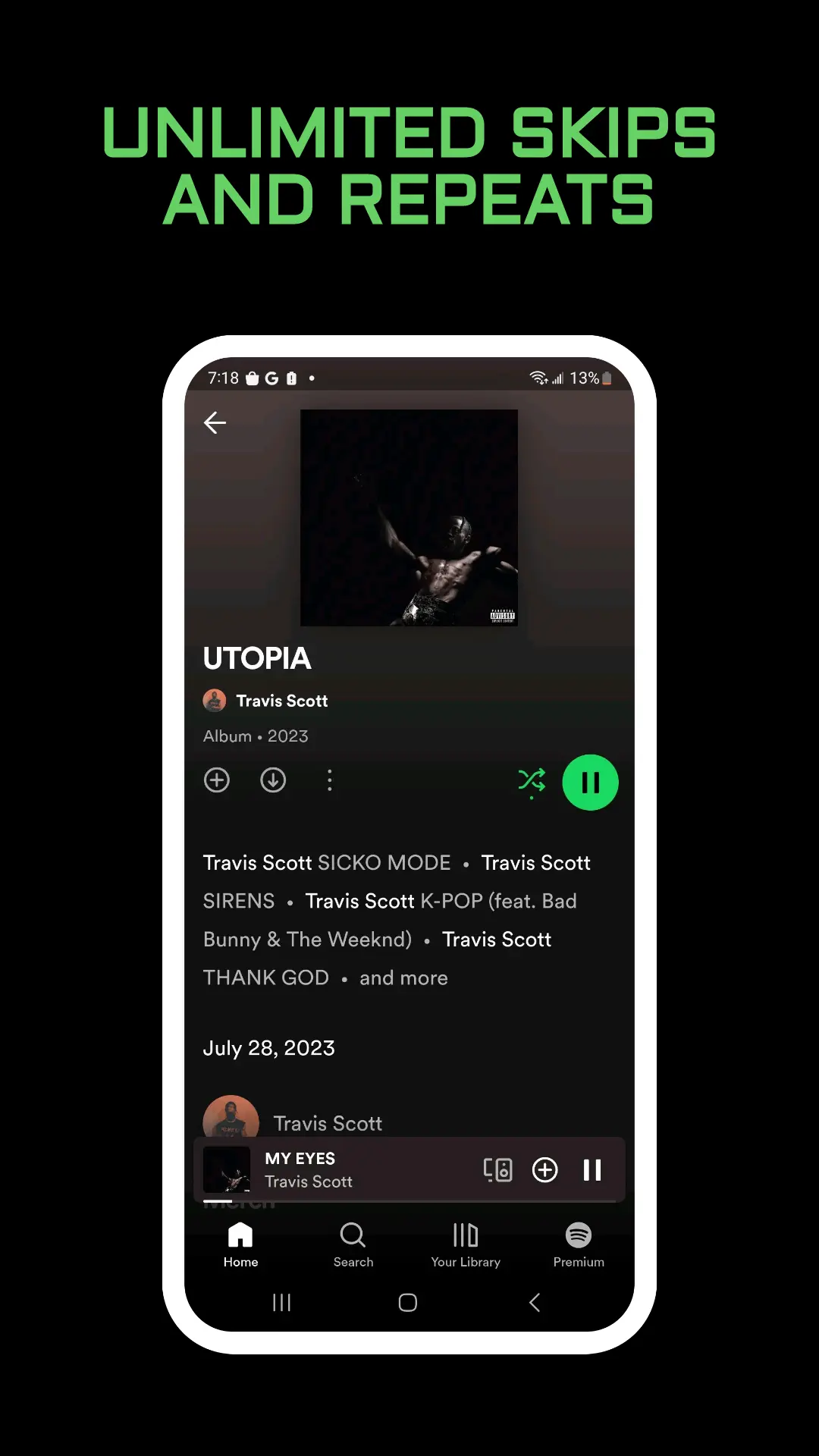
Queue, Playlist, and Jam
A playlist is a saved list in Your Library. The queue is the upcoming order for this listening session. Adding a song to the queue does not add it to the playlist, and clearing the queue does not delete the playlist.
A Jam is a shared live queue. Friends can add tracks while you listen together. That is a different screen from your personal Play Queue. If the goal is a group session, use how to use Spotify Jam. If the goal is a list people edit over several days, use a Spotify collaborative playlist instead of the queue.
How to Open the Queue on Mobile
Spotify marks the mobile queue steps as a Premium feature.
- Tap the Now Playing bar at the bottom.
- Tap the queue control at the bottom of the Now Playing view. In the 2025 player redesign, Premium listeners see that control as three lines.
On a tablet, tap the album art in the side menu to open Now Playing, then open the queue from there. If you just used Add to Queue, the notification can also include an Open button.
Add, Reorder, Remove, and Clear
On a phone or tablet:
- Add. Tap the menu next to a track, then tap Add to Queue.
- Reorder. In the queue, tap and hold the handle next to the track, then drag it.
- Remove. Swipe left on the track in the queue.
- Clear. Tap the menu and choose Clear. That clears tracks you added, not your whole library.
On desktop and the web player, click the queue button next to the play bar at the bottom. Right-click a track and choose Add to queue. Drag a row to move it. Right-click and choose Remove from queue to take one song off. Clear queue asks you to confirm with Yes.
Repeat Is Not the Queue
Now Playing has a repeat control beside shuffle. Press it once and the album, playlist, or song starts again when it ends. Press it a second time and only the current song repeats. Repeat does not add a row to the queue, and it does not save a new playlist. Use repeat when you want the same track again. Use Add to Queue when a different song should play next.
What Plays After Your Queue Ends
In May 2025 Spotify said the Premium queue view also shows songs it recommends after your own queued tracks finish. You can keep those, or turn the extras off. Autoplay and Smart Shuffle can both be switched off in settings if you want the music to stop when your picks end.
Smart Shuffle is the mode that mixes recommendations into a playlist while it plays. The on and off steps are in Spotify Smart Shuffle. The queue screen on Premium can also show Shuffle, Repeat, and Sleep Timer. A timer is separate from the song order. Set one from Now Playing with Spotify sleep timer if you want playback to stop even when songs are still lined up.
When Add to Queue Is Missing
- On mobile, the documented queue editor is for Premium. A Free account may not get the same Add to Queue control.
- Update the app. The queue button moved in the 2025 Now Playing layout.
- Open the full Now Playing view first. The button is not in Your Library.
- If another device took over playback, the queue you see may belong to that session. Play on this phone again, then reopen the queue.
Songs you play most often already have a playlist. Search Spotify On Repeat and add one of those tracks to the queue when you want it sooner, without waiting for the playlist order.
Queue and Downloads
The queue still needs a connection unless the tracks are downloaded. On a flight, add songs only after they are saved for offline play, or the row will not start. Download first with how to download songs from Spotify, then build the queue from those downloads.
Frequently Asked Questions
Does clearing the Spotify queue delete my playlist?
No. Clear removes tracks you added to the upcoming order. The playlist in Your Library stays as it was.
Can I drag songs around in the queue?
Yes. On mobile, hold the handle and drop the track in its new spot. On desktop, click and hold the row, then drag it.
Why do extra songs play after my queue?
Premium can show Spotify’s recommendations after your own tracks. Turn off Autoplay or Smart Shuffle in settings if you want listening to end there.
Final Thoughts
Open Now Playing, then the queue. Add what should play next, drag it into order, and clear the list when the session is over. Use a Jam only when other people should add songs too.