
Spotify Messages: Chat, Share Music, and Manage Privacy
Spotify Messages is the in-app chat for sharing songs, playlists, podcasts, audiobooks, and more with friends on mobile. Spotify’s Messages help covers starting chats, group threads up to ten people, deleting messages, notification controls, and turning the feature off. This guide follows that official path so you can message people you already hang out with on Spotify, manage requests, and keep privacy settings tidy.
How Spotify Messages Works
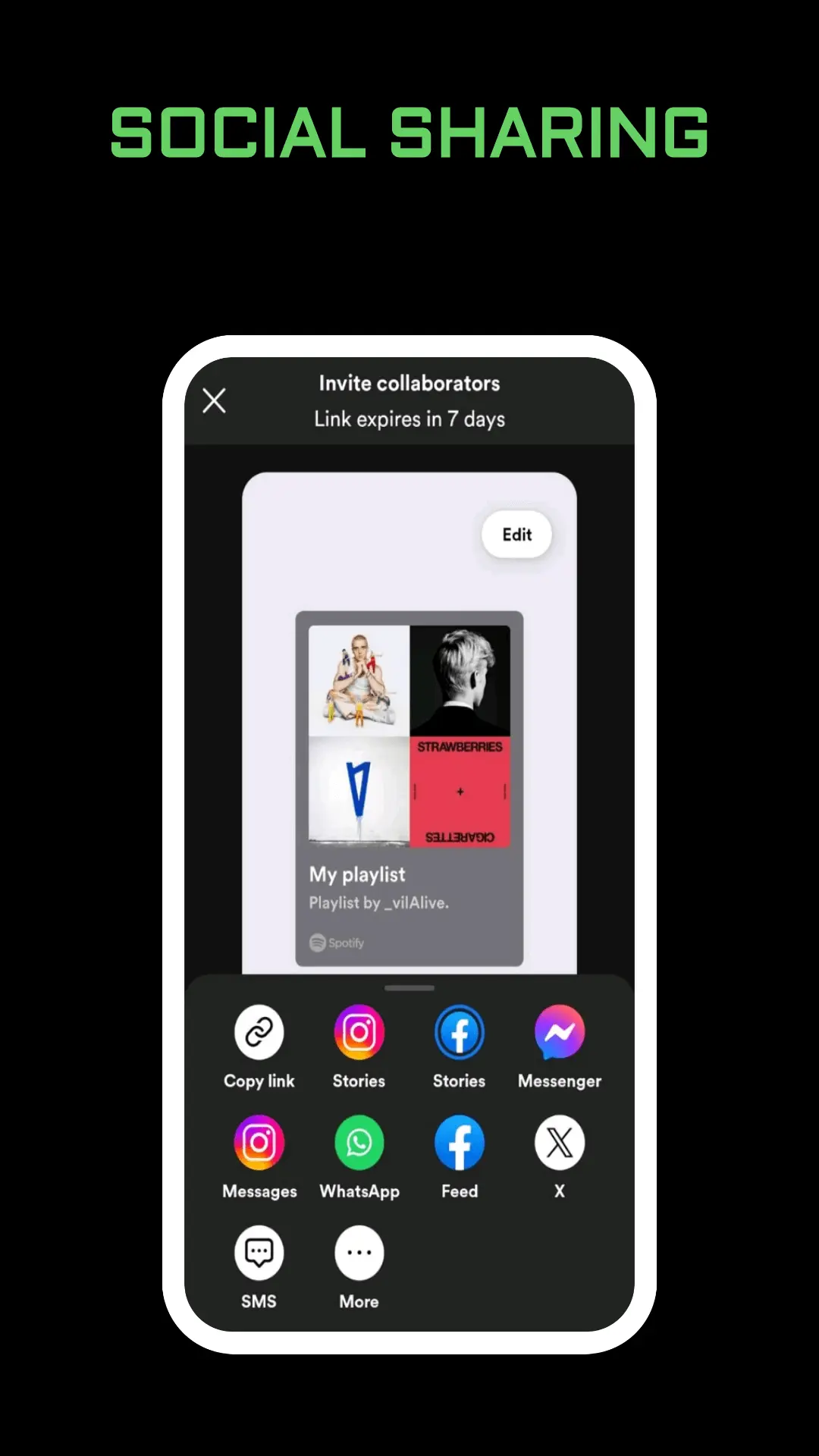
Messages lives in the Spotify mobile app. You can share content from the Share sheet or open your profile and start a new chat under Messages. The first time you message someone, they get a request they can accept, block, or delete. Spotify says chats are private between participants but not encrypted, so treat them like any other social inbox.
Suggestions appear for people you already know on Spotify: prior shares, Blend or collaborative playlists, a recent Jam, or a shared Family or Duo plan. Friend follows help those connections show up; see Spotify follow friends and Spotify Blend. If someone is missing from suggestions, send an invite link from another app; once they open it, they start appearing in your list.
Start a Chat or Share Content
To share a song, playlist, album, podcast episode, audiobook, artist, live event, or countdown page:
- Tap Share on the item.
- Pick up to ten friends from suggestions, or send an invite link.
To start a blank chat, open your profile picture, scroll to Messages, and tap New message. Group chats support up to ten friends: Create group, pick people, then confirm. The creator becomes admin and can add or remove members. Participants who leave miss messages sent while they are away.
Sharing outside Messages still uses the normal share sheet covered in Spotify share. Codes for in-person handoffs are in Spotify code. Playlist collab invites remain in Spotify playlist.

Manage Chats, Deletes, and Notifications
Open your profile, scroll to Messages for recent threads, and tap Show all for more. To clear an individual chat from your view, open the chat header, open the person menu, and select Delete chat. Spotify will not notify the other person or remove the chat from their side, and the thread can return if you message again.
Delete a received message with tap-and-hold, then Delete for you. For a message you sent, tap-and-hold and Delete; Spotify notes you can also remove your last four sent messages from everyone’s view in that chat.
Notification toggles live under Settings and privacy, Notifications, Social features, Messages. Turn them off when chat pings interrupt listening. Broader alert settings are in Spotify notifications.
Block Users and Opt Out
To block someone from messaging you, open the chat header, open the menu beside their name, select Block user, and confirm. Unblock the same way, or manage the full list under Settings and privacy, Privacy and social, Blocked users. Blocking also ties into follower privacy covered in Spotify follow friends.
To stop using Messages entirely:
- Open your profile picture.
- Tap Settings and privacy.
- Open Privacy and social.
- Under Social features, toggle Messages off.
Listening Activity and Private Session still control what friends see while you play, separate from chat. Those guides are in Spotify listening activity and Spotify private session. Account safety if a stranger keeps requesting chats is in how to keep your Spotify account safe.
Family and Duo households often message each other by default because they already share a plan. Seat management is in add or remove a member in a Family plan and Spotify Duo. Kids accounts should stay on the Kids experience rather than adult Messages; see Spotify Kids.
If the Messages section will not load, update the app, restart it, and clear cache only if the UI is stuck. Cache steps are in Spotify clear cache. The web player does not replace the mobile Messages inbox; limits are in Spotify web player.
Jam and listening reactions often sit next to activity feeds that also surface in chats. Keep activity on only for people you trust when you share tracks into Messages; username clarity helps friends find the right profile before they accept a request, as in Spotify username.
Frequently Asked Questions
Is Spotify Messages available on desktop?
Spotify documents Messages for mobile. Use the phone app to chat, share into threads, and manage groups.
Why is a friend missing from suggestions?
Suggestions favor people you already shared with, Blend or collab partners, recent Jam mates, or Family or Duo members. Send an invite link if they are not listed yet.
How do I turn Spotify Messages off?
Go to Settings and privacy, Privacy and social, Social features, then toggle Messages off.
Final Thoughts
Spotify Messages is the mobile chat layer for sharing music with people you already know on the service. Start from Share or New message, keep groups small, and use block or the Social features toggle when you want quiet. Official Messages help stays the checklist when a request will not appear or a chat will not delete from your list.