Spotify Playlist
Spotify playlist is a list you name and fill yourself. A road trip, a gym hour, or a handful of songs for one person all start the same way: create the playlist, add tracks, then edit or delete it later. Made for You mixes are not this list. This guide follows Spotify’s create, add, edit, and delete steps on a phone and on a computer.
Create a Spotify Playlist
On a phone or tablet:
- Tap Create.
- Select Playlist.
- Name your playlist, and tap Create.
- Tap Add to this playlist, or choose from Spotify’s recommendations.
You can hide Create from the menu bar. Spotify documents that choice on its own help page. This article does not invent a second path. If Create is missing, check that display option before you assume the app cannot make a playlist.
On a computer:
- Go to Your Library.
- Click Create at the top.
- Select Playlist.
- Edit the name and other details.
- Click SAVE.
The desktop shortcut is Cmd + N on a Mac or Ctrl + N on Windows. That opens the same create action. You still name the playlist and save it. The shortcut does not pick the songs for you.
Add Songs
On the phone, while the playlist is open, tap Add. To add something later:
- Tap the menu on the song, album, or other item you want. Spotify shows that menu on iOS and Android.
- Tap Add to Playlist.
- Select a playlist.
- Tap Done.
On a computer, right-click the item, or click the menu next to it, then click Add to Playlist and select the playlist. You can also drag tracks onto the playlist. Drag and drop is the fastest path when the playlist is already visible in Your Library.
Adding a song does not remove it from the album. It also does not replace Spotify Liked Songs. The heart saves a track into Liked Songs. Add to Playlist puts it on a list you named. Use both when you want a song in your library and also on a trip playlist.
Edit or Delete It
On a phone, open the playlist and tap Edit.
- Tap a track to remove it.
- Tap, hold, and drag to reorder tracks. Spotify marks that reorder as Premium only.
To delete the whole playlist on a phone, open the menu on the playlist and tap Delete Playlist.
On a computer, remove one song by right-clicking it, or by clicking the menu next to it, then choosing Remove from this Playlist. Reorder by dragging a song to the position you want. The desktop page does not add an extra Premium label to that drag. To delete the playlist, right-click it or click inside it, then click Delete.
Delete removes the playlist you created. It does not delete the songs from Spotify’s catalog, and it does not clear Liked Songs. If a track was only on that playlist, it remains on the album where you found it.
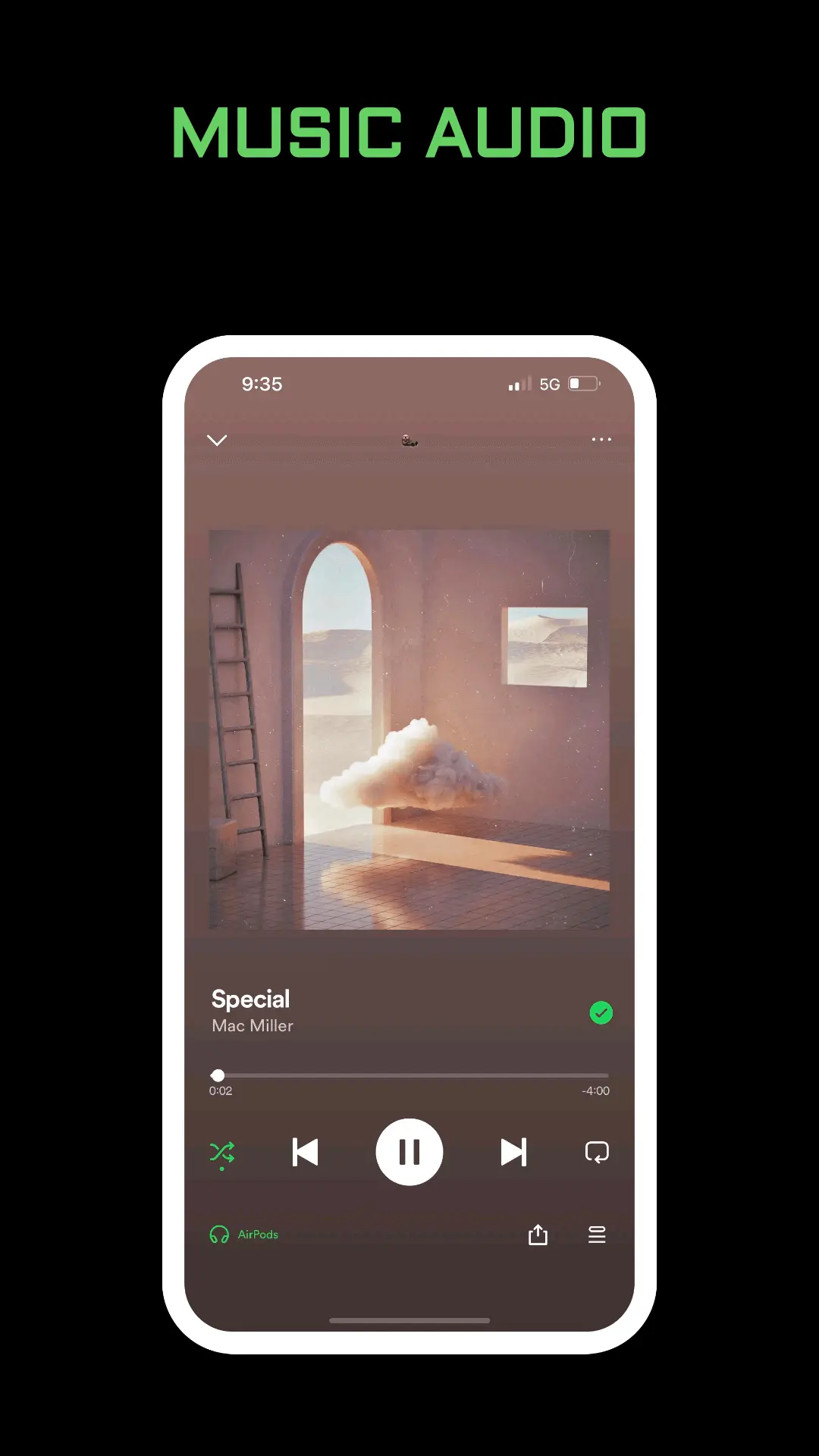
The order you save is the order playback uses until you turn shuffle on. Shuffle is a play mode, not an edit. The session list that shows what is coming next is the Spotify queue. Clearing the queue does not delete the playlist.
Playlists You Did Not Build by Hand
Spotify also maintains lists. Do not recreate those from Create if the automatic one is what you wanted.
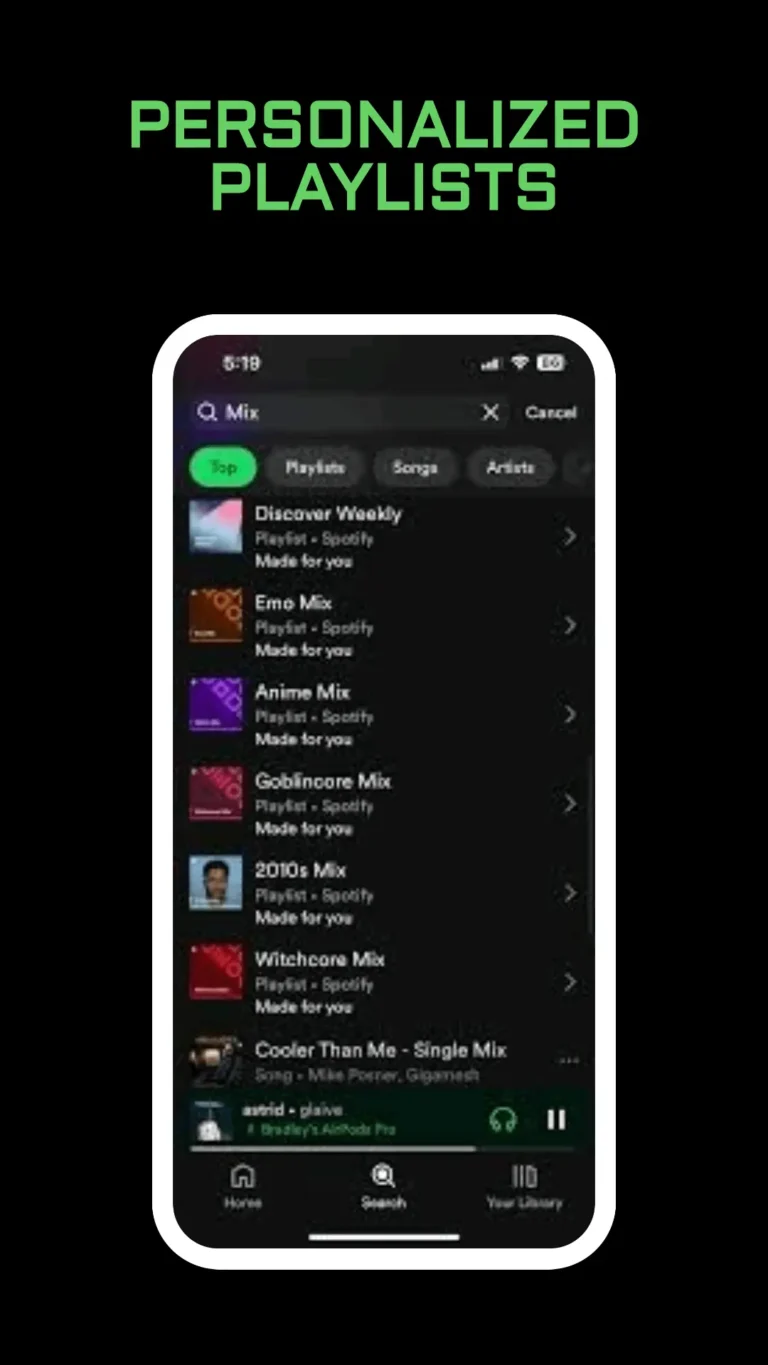
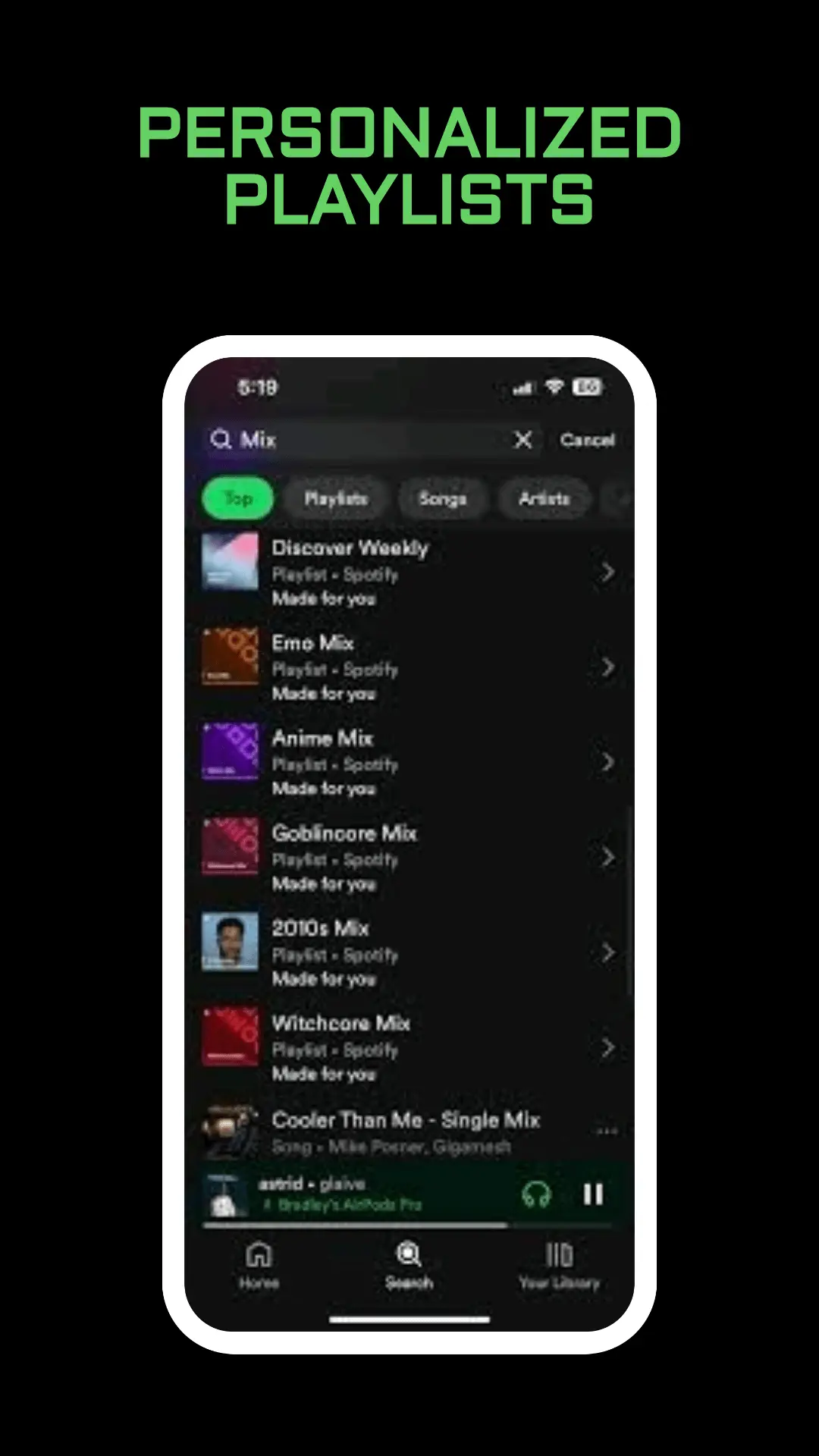
- Spotify Daily Mix lives under Made for You. It updates from what you play. You do not name it with the Create button.
- Spotify Discover Weekly is a separate recommendation playlist. Search for it instead of filing its songs into a new empty list, unless you want your own copy.
- Spotify Blend is a shared playlist that updates from two people’s taste. It is not the blank playlist in this guide.
- A collaborative playlist lets other people add tracks. The invite lasts 7 days and is covered in Spotify collaborative playlist. Create the list first if you want to own it, then use that guide for the invite.
- Spotify Smart Shuffle can drop recommendations into a playlist you are playing. Those extra tracks are not the same as songs you added with Add to Playlist.
People who heart a public playlist are a different screen. That count is explained in how to see who liked your Spotify playlist. Liking is not the same as editing the track list.
Frequently Asked Questions
Where do I start on a phone?
Tap Create, choose Playlist, type a name, and tap Create. Then use Add to this playlist or the recommendations Spotify shows. If Create is hidden, Spotify’s menu-bar setting is the place that brings the button back.
Why can I not drag songs on my phone?
On mobile, tap, hold, and drag to reorder is Premium only. You can still add and remove tracks. On a computer, reorder by dragging the song to a new position.
Will delete remove the music from Spotify?
Delete Playlist removes the list. The recordings stay in the catalog. Remove from this Playlist takes one song off that list and leaves the rest of your account alone.
Final Thoughts
A Spotify playlist starts with Create, then Playlist, then a name. Add tracks from the playlist screen or from the menu on a song. Reorder on a phone is a Premium drag. Delete the list from its menu when you are done with it, and leave Daily Mix, Blend, and a collaborative invite for the jobs they actually do.