
Spotify Reorder Playlist: Drag Tracks into the Perfect Order
Ready to spotify reorder playlist tracks so the opener hits, the midpoint breathes, and the closer lands? Spotify lets you drag songs on desktop and—on Premium mobile—tap-hold-drag in Edit mode. Newer bulk actions also help you select multiple items and reorganize faster.
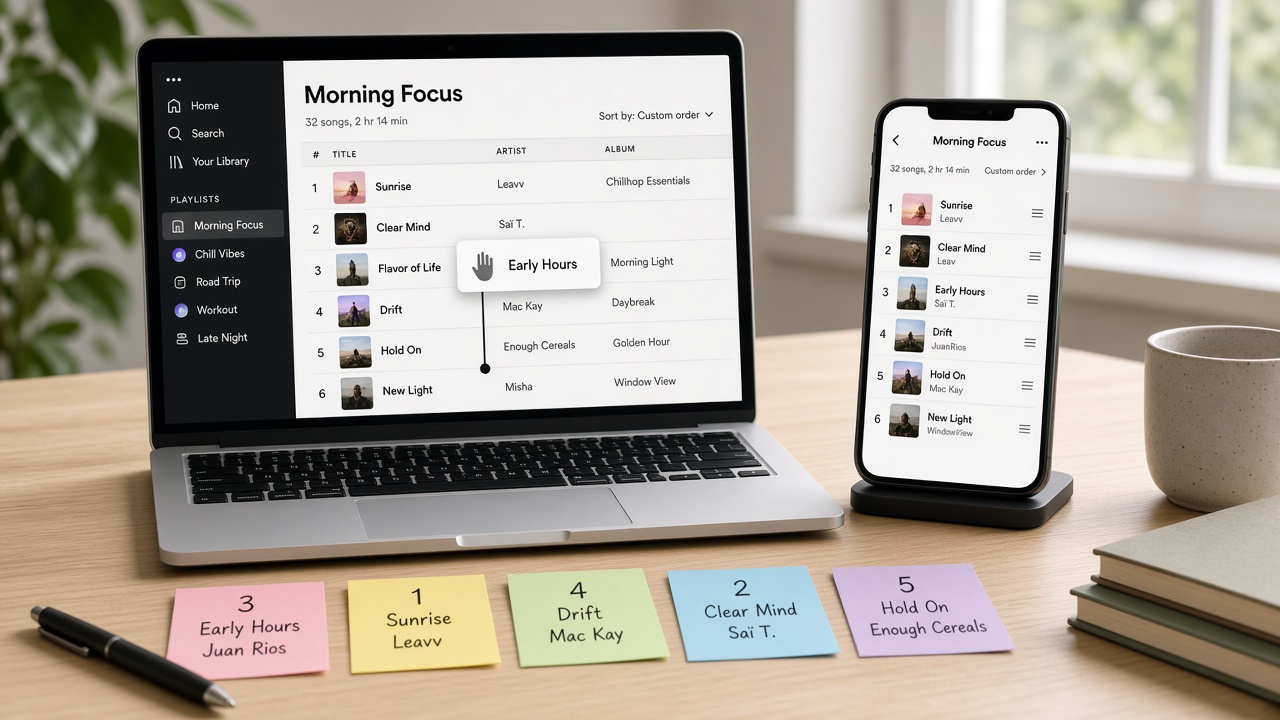
This guide covers desktop drag-and-drop, mobile Premium reorder, bulk edits, when shuffle fights your order, and how to lock a DJ-friendly sequence. Official edit help: Create and edit playlists.
Why order matters
Custom order is the difference between a random dump and a setlist. Gym lists need rising BPM; dinner lists need soft landings; kids’ car lists need calm openers. If you always play on shuffle, reorder still helps Smart Shuffle seeds and makes non-shuffle sessions usable. Related: shuffle and Smart Shuffle.
Reorder on desktop
- Open a playlist you own or can edit.
- Click and drag a track to a new position.
- Drop it; the list saves the new order.
- Use column headers to sort temporarily when hunting duplicates, then drag back into a craft order if needed.
Desktop remains the best canvas for 100+ track surgery—especially after a merge playlists session.
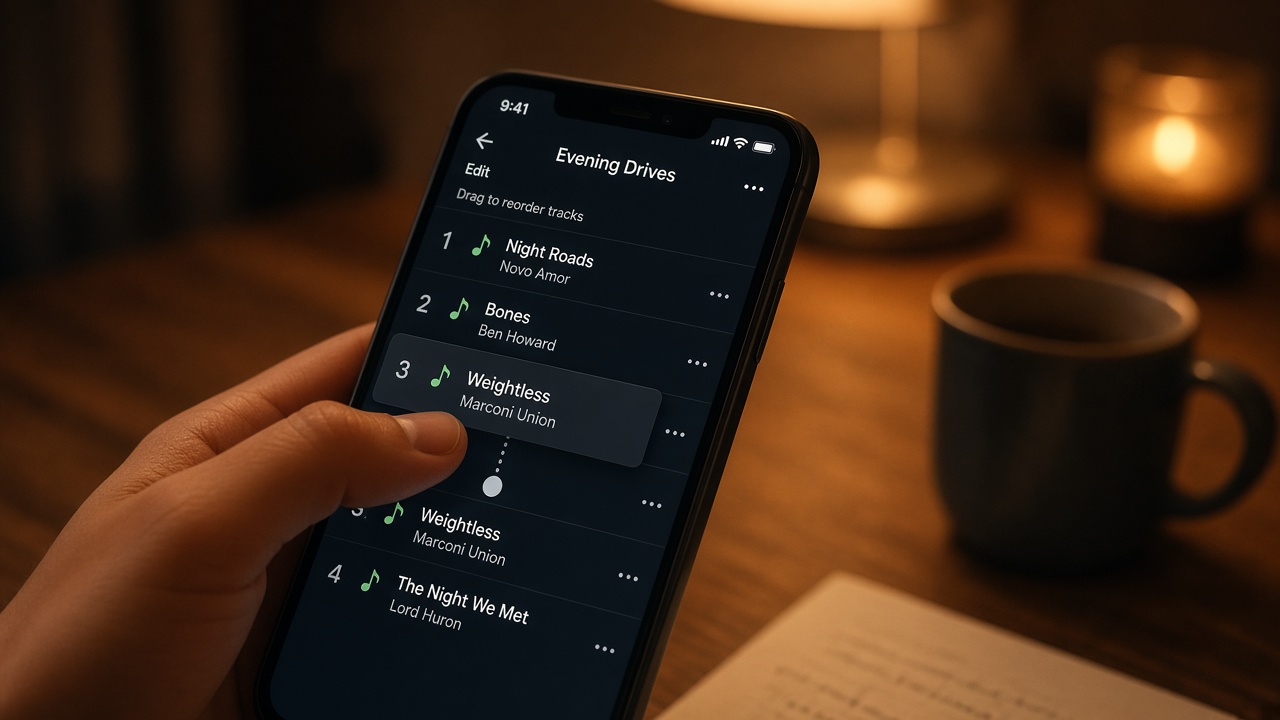
Reorder on mobile (Premium)
- Open your playlist.
- Tap Edit.
- Tap, hold, and drag tracks to reorder (Premium).
- Save/exit Edit when finished.
Free users can still remove tracks and rebuild order by re-adding in sequence, or finish sorting on desktop. Creating the list first: create playlist; adding songs: add to playlist.
Bulk actions and queue control
Spotify has been rolling out in-playlist bulk actions so you can select multiple tracks, episodes, or audiobook items and move or manage them together. Premium mobile also regained multi-select in the play queue in recent updates. Use bulk select to pull all ballads to the end, or to lift intros into a cold-open block.
Keep order from fighting shuffle
- Turn shuffle off when you need the crafted sequence.
- Use Mix transitions after order is locked if you want blends—see mixed playlist.
- Pin the finished list so you open the ordered version first—pin playlist.
- Download after ordering so offline playback matches the set—download playlist.
Collaborative reordering
On collaborative playlists, anyone with edit rights can reshuffle your careful arc. Agree on a “no drag after Friday 5 p.m.” rule before parties, or duplicate the list into a host-controlled private copy. Privacy tips: private playlist.
Ordering frameworks you can steal
- Energy arc: warm → peak → cool.
- BPM bands: cluster similar tempos; avoid 70→140 whiplash.
- Key-friendly neighbors: useful before enabling Mix.
- Explicit separation: clean block first for Family car rides.
Troubleshooting
Drag does nothing on phone. Confirm Premium, Edit mode, and ownership; update the app.
Order resets. You may be viewing a sorted column on desktop—clear sort or drag in the custom-order view.
Offline mismatch. Re-download after big reorder so cached order refreshes.
Stay official
Skip “playlist optimizer” sites that want full account access. Reorder inside Spotify and install from spotify.com/download.
FAQ
Can Free users reorder on mobile?
Premium is required for tap-hold reorder on mobile per Spotify’s edit help; desktop drag is the Free-friendly path.
Does reorder change Liked Songs?
Liked Songs is a special collection; reorder applies to normal playlists you edit.
Will followers see the new order?
Yes for playlists they play; the sequence is part of the playlist state.
Edit, drag, save, turn shuffle off when performing—and your spotify reorder playlist setlist stays intentional.
Dress rehearsal before the event
Play the first three and last three tracks in order the night before a wedding or stream. Fix any clunker transitions. Export nothing illegal—just listen. If co-hosts need a copy, share the link after you freeze edits. That discipline turns reorder from fidgeting into production.
Teachers building classroom warm-up lists should put instructions-friendly instrumentals first and lyrical tracks later. Streamers can keep stinger sounds in positions 1–2 for easy restart after breaks. Long-haul drivers might front-load familiar choruses for the first hour, then adventure deeper cuts when attention is steady.
After reordering, rename the playlist with a version tag (“Reception v3”) so collaborators know which link is frozen. Duplicate before experimental shuffles of the order. If Mix is on, tune transitions only after the bones of the sequence feel right—otherwise you polish the wrong seams. When the set works, download it and turn Offline mode on for the venue basement test.
Remember: reorder is creative work. Give it a quiet half hour, headphones on, notifications off. The playlist you trust in custom order will outperform a thousand shuffled Likes every time you need the room to feel a certain way. When guests compliment the flow, you will know the drag-and-drop time was worth it—and you will never go back to pure chaos shuffle for important nights.