Spotify Add to Playlist: Save Songs Fast on Phone or Desktop
Spotify add to playlist is the everyday move that turns Discover Weekly finds, album deep cuts, and friend shares into lists you actually replay. Whether you tap ⋯ on mobile or right-click on desktop, the official flow is the same: pick a destination or create a new one—no third-party “auto saver” logins required.
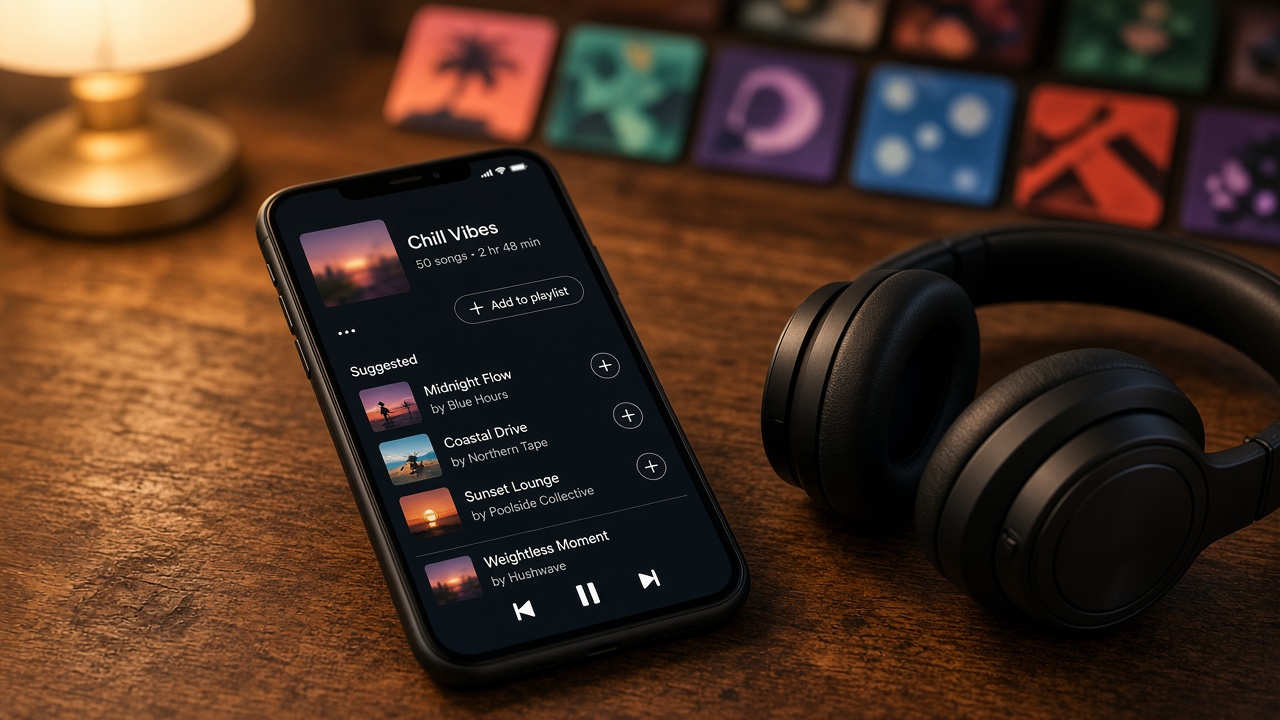
This guide covers mobile and desktop adds, bulk select, Liked Songs vs playlists, duplicates, collaborative targets, and habits that keep lists useful. Official steps: Create and edit playlists.
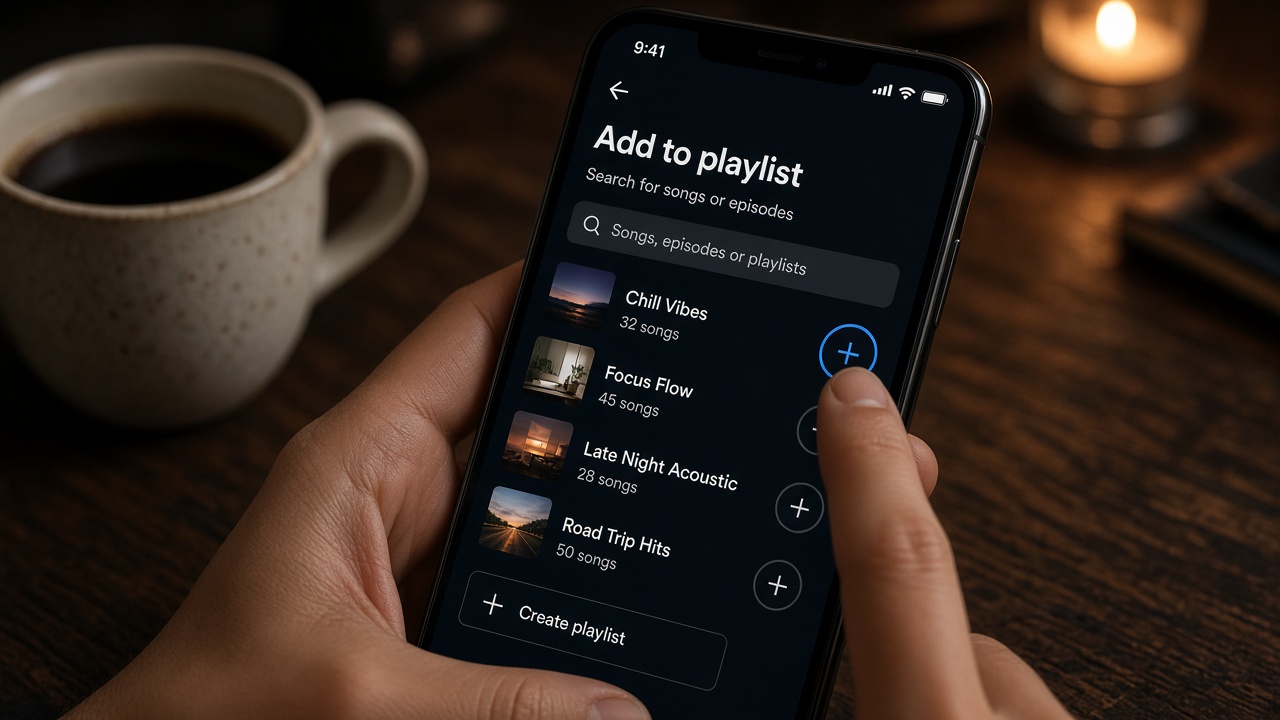
Add to playlist on mobile
- Find a song, album track, episode, or recommendation.
- Tap ⋯ (iOS) / ⋯ (Android) on the item.
- Tap Add to Playlist.
- Select an existing list or create a new one.
- Tap Done.
Inside a playlist you already opened, tap Add to pull recommendations or search. That path is perfect when you are actively building a theme. New to lists? Start with create playlist.
Add to playlist on desktop or web
- Right-click a track (or click the ⋯ menu).
- Choose Add to Playlist.
- Pick a destination or New playlist.
- Or drag and drop tracks onto a playlist in Your Library.
For bulk work: Ctrl/Cmd+A inside a source list, then Add to playlist—same pattern used when you merge playlists or transfer playlist libraries.
Liked Songs vs Add to playlist
The heart/Like button saves to Liked Songs, a special collection—not a normal playlist you rename freely. Use Like for quick captures; use Add to playlist when you need a named context (Gym, Focus, Dinner). Many power users Like first, then weekly sort Likes into themed lists from desktop.
Duplicates and the 10,000 cap
Spotify often warns when a track already exists in the destination—choose to add only new ones when prompted. Playlists max out around 10,000 items; split volumes instead of forcing one mega-list. After messy adds, sort by title to prune doubles, then pin the clean version with pin playlist.
Collaborative and private destinations
Adding to a collaborative playlist shares the track with co-editors—great for party queues, risky for surprise-gift drafts. Keep drafts in a private playlist until ready. Organize finished themes in a playlist folder so Add menus stay short.
Add from radios, queues, and shares
- From Song Radio or artist pages: ⋯ → Add to playlist on keepers.
- From Queue: open the queue item menu when available and save before the night ends.
- From a shared link: open the track, then add—don’t assume Share equals save.
- From Smart Shuffle / recommendations: tap + when you want a suggestion permanent.
Offline and Premium notes
Adding a song does not download it. Premium users who need flights should download the whole playlist afterward—see download playlist. Free accounts can still add to playlists; offline music rules still apply.
Speed habits
- Keep five destination lists pinned so Add menus show them first.
- Name lists with emoji or prefixes (01 Gym, 02 Focus) for sort order.
- On desktop, leave the target playlist open while browsing Release Radar.
- Avoid browser extensions that “auto-add” after OAuth—stick to the official app from spotify.com/download.
Troubleshooting
Playlist missing from the picker. Pull to refresh Library; confirm you are on the correct account avatar.
Add fails offline. Reconnect; playlist edits need network.
Wrong song version. Open the album version you want, then add—search hits can be remasters or live cuts.
FAQ
Can I add a whole album at once?
Yes—use the album menu → Add to playlist where offered, or select all on desktop.
Can Free users add to playlists?
Yes.
Does adding notify followers?
Followers of a playlist may see updates; private lists stay quieter.
Pick the track, Add to playlist, choose the right destination—and your spotify add to playlist habit stays fast, official, and organized.
Weekly triage ritual
Every Sunday, open Liked Songs on desktop, select the week’s captures, and distribute them into Gym, Focus, and Party in one sitting. Delete anything you Liked by accident. That thirty-minute ritual beats scrolling a thousand-hearted dump when you need a run playlist at 6 a.m. Teach family members the same Add flow so collaborative lists grow with intention instead of random meme tracks at midnight.
Students can maintain “Lecture Focus” and “Lab Beats” as separate Add targets so one noisy playlist does not ruin deep work. Commuters should add from Download-friendly lists only after checking grayed regional tracks. When a friend sends a pile of links, open each track once and Add immediately—browser tabs full of open.spotify.com URLs are how songs get lost.
If the Add sheet feels endless, unfollow dead collaborative lists and archive old projects into folders. A shorter picker means fewer mis-taps onto the wrong wedding draft. That small UX win is why organized Libraries make Add to playlist feel instant instead of stressful. Two minutes of cleanup saves twenty minutes of fixing wrong-list adds later in the week.