Spotify Transfer Playlist: Move Music to a New Account
Switching emails or starting fresh? A spotify transfer playlist move copies your music to another account the official way: make lists public (or shareable), open them from the new login, then recreate playlists by selecting tracks. Spotify does not offer a one-click account merge.
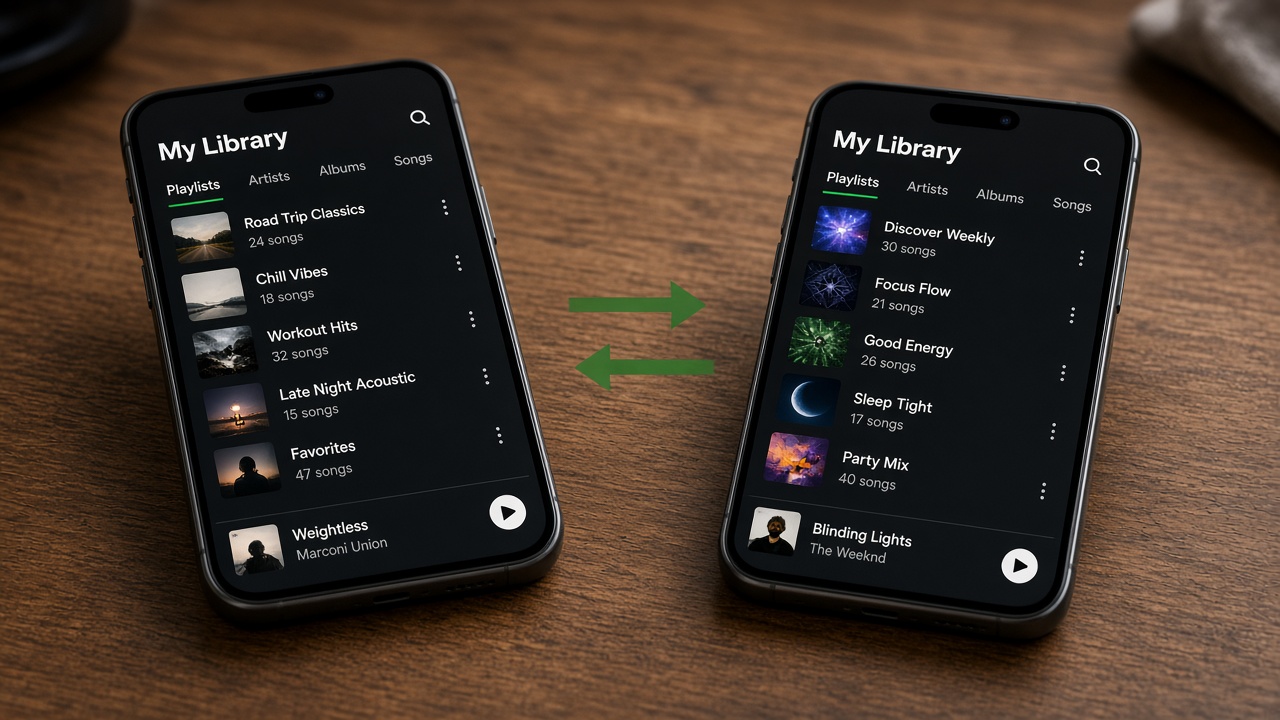
This guide follows Community-tested steps: public playlists on the old profile, desktop select-all copy on the new account, Liked Songs via a temporary playlist, and what will not transfer (Followers, Wrapped history, recommendations graph). Prefer changing email on the same account when you only need a new inbox—see change email.
Before you transfer: same account vs new account
- Same account, new email: update personal info; playlists stay. No transfer needed.
- New account required: copy playlists manually; listening history and followers do not move automatically.
- Family seat change: leaving a plan does not delete playlists on your user—see leave family plan.
Official create/edit reference: Create and edit playlists. App installs: spotify.com/download.
Prepare the old account
- Log into the old Spotify account on desktop.
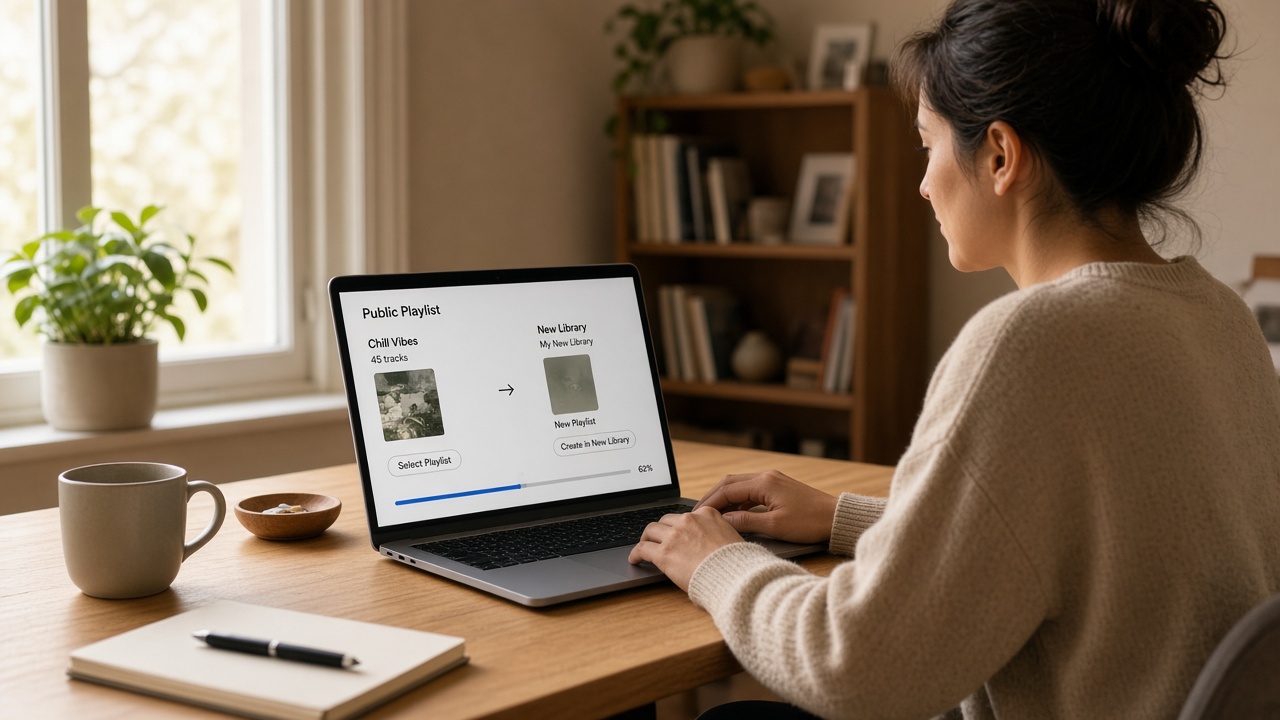
- For each playlist to keep: set it Public and ensure it appears on your profile (profile publishing settings).
- Create a playlist such as “Liked Backup,†open Liked Songs, select all, and add those tracks into Liked Backup.
- Copy your profile link (Share / Copy link to profile) or note
spotify:user:YOURUSERNAME. - Sign out of the old account on that desktop if you will switch logins next.
Private lists are invisible to the new account—flip privacy temporarily or use expiring share invites, then privatize again later with private playlist tips.
Copy into the new account (desktop)
- Log into the new account on desktop.
- Paste the old profile URL or search
spotify:user:oldusername. - Open Public Playlists on that profile.
- Enter a playlist → select all tracks (Ctrl/Cmd+A) → right-click → Add to playlist → New playlist (reuse the name if you want).
- Repeat for every list, including Liked Backup.
Work in batches of five playlists so you do not lose place. If a track is unavailable in the new account’s market, it may gray out—region rules still apply (change country).
Mobile shortcuts
On the new phone login, open a shared/public playlist from the old profile → ⋯ → Add to other playlist → New playlist. Large catalogs are still faster on desktop. After copying, pin key lists via pin playlist and file them with a playlist folder.
What will not transfer
- Followers and following relationships (refollow artists manually—follow).
- Friend activity and Blend partners.
- Exact Wrapped history and long-term taste graph (it rebuilds as you listen).
- Premium status—subscribe again on the new account if needed.
- Downloads—you must re-download playlists on each device.
Security while transferring
Never give both passwords to a “playlist mover†website. OAuth tools that request full library write access are a common phishing vector. Use only Spotify’s own clients. After the move, sign out of shared PCs and change password on the old account if you are retiring it.
After the transfer checklist
- Spot-check song counts on new vs old lists.
- Re-enable Private on sensitive playlists.
- Update payment on the account you will keep.
- Close or stop using the old account if abandoned—see close-account guidance if you truly want deletion.
- Rebuild Daily Mix signal with a week of normal listening.
FAQ
Can Spotify Support merge accounts for me?
There is no full account merge; Support may help in limited playlist cases—start with the public-copy method.
Do collaborative playlists copy?
You can copy tracks out; collaboration rights stay on the original unless rebuilt.
Is Free enough to transfer?
Yes for copying playlists; Premium is separate.
Publicize, copy on desktop, verify counts, lock privacy—and your spotify transfer playlist migration stays official and safe.
Liked Songs and podcast episodes
Podcast episodes inside Liked or Your Episodes need separate handling—add must-keep episodes into a show-specific playlist before you lose old-account access. Music-only users can skip shows entirely. If the old account used a school email you are losing, finish the transfer before mailbox shutdown day, and verify the new inbox promptly.
Artists you followed will not auto-migrate—export a screenshot of the Following list or scroll the old profile Artists tab and refollow the top fifty on the new account the same evening. Playlist covers you uploaded may need re-adding; keep those image files handy. If coworkers still hold the old profile link, update shared documents so they stop saving music to an account you abandoned. When both accounts remain active briefly, label the new profile display name with “(main)†so you never favorite a track on the wrong login again.
Budget an hour per 20 playlists. Rushing leads to skipped discs and “missing song†panic later. A simple spreadsheet of playlist name + track count old vs new is enough QA for most libraries and prevents redo work next weekend.