
Spotify Autoplay: Turn Similar Songs On or Off
Spotify autoplay keeps music going after an album, playlist, or selection ends by queuing similar songs. Spotify’s Autoplay help says the feature is there so listening never stops, and you can switch it on or off in Playback settings. This guide follows that official control so you can disable similar-content autoplay on mobile or desktop, sync the choice across Connect and the web player, and tell Autoplay apart from repeat, queue, and radio.
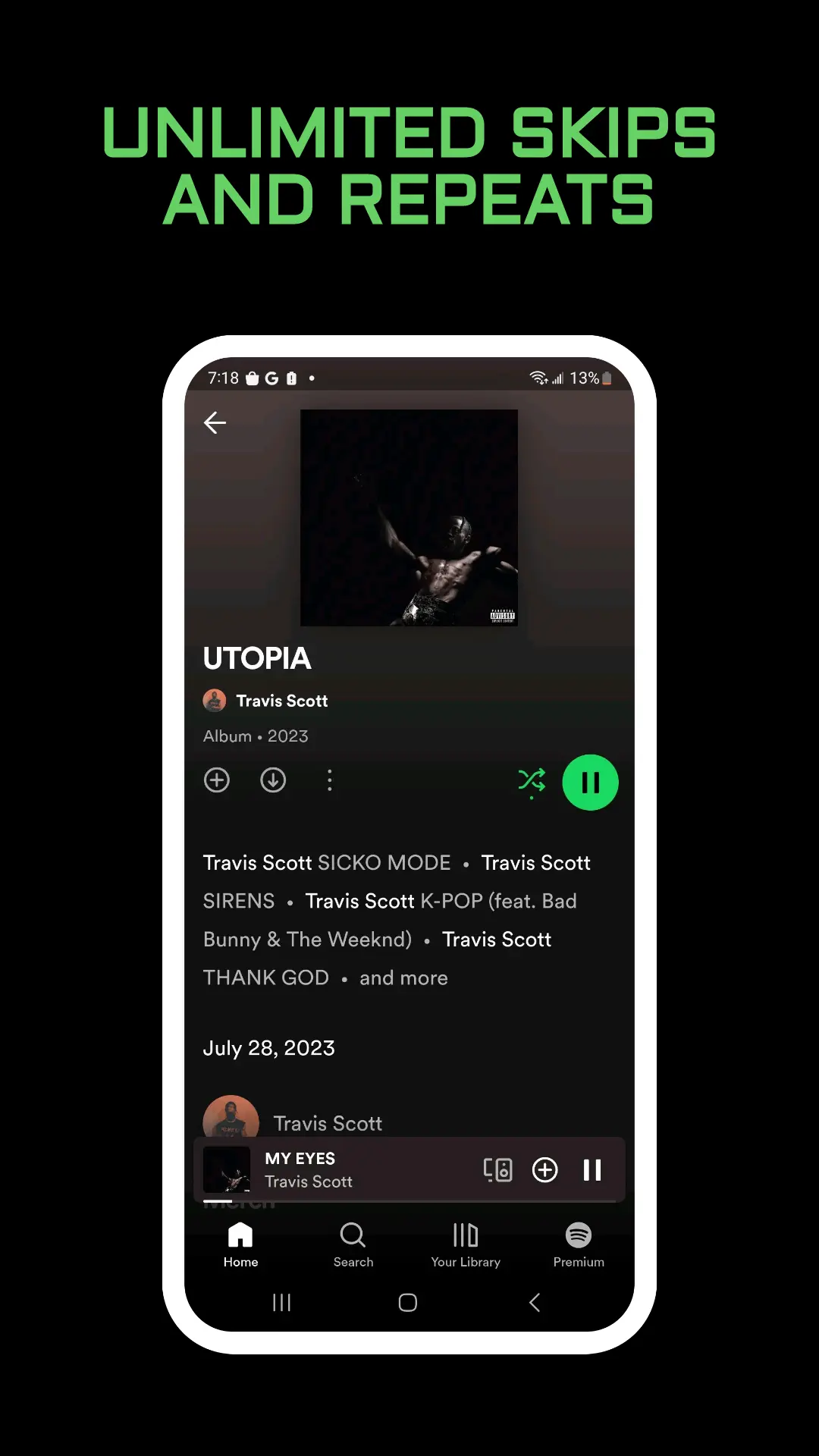
What Spotify Autoplay Does
When your chosen list finishes, Autoplay starts recommendations that match the vibe. That is useful for background listening and annoying when you wanted silence after a short album. Spotify treats Autoplay as an account preference: change it once in the mobile or desktop app and the same state applies on other signed-in clients, including the web player and many Connect sessions.
Autoplay is not the same as Repeat. Repeat loops the current album, playlist, or song from Now Playing; steps are in Spotify repeat. It is also not your manual Play Queue, which you edit track by track in Spotify queue. Shuffle only reorders what you already selected; see Spotify shuffle.
Sleep timer can still stop playback on a schedule even if Autoplay is on. Timer steps are in Spotify sleep timer. Private Session only hides listening activity; it does not disable Autoplay. Privacy notes are in Spotify private session.
How to Turn Autoplay Off or On
On mobile or tablet:
- Tap your profile picture.
- Open Settings and privacy.
- Under Playback, find Autoplay or Autoplay similar content.
- Switch it off for a hard stop at the end of the list, or on for continuous recommendations.
On the desktop app:
- Click your profile picture and open Settings.
- Scroll to the Autoplay section.
- Toggle Autoplay on or off.
The web player often respects the account setting but may not show its own toggle. Set Autoplay in the mobile or desktop app first, then confirm behavior at open.spotify.com. Web limits are in Spotify web player. After you change the switch, end the current playlist once so you can hear whether similar songs still start.
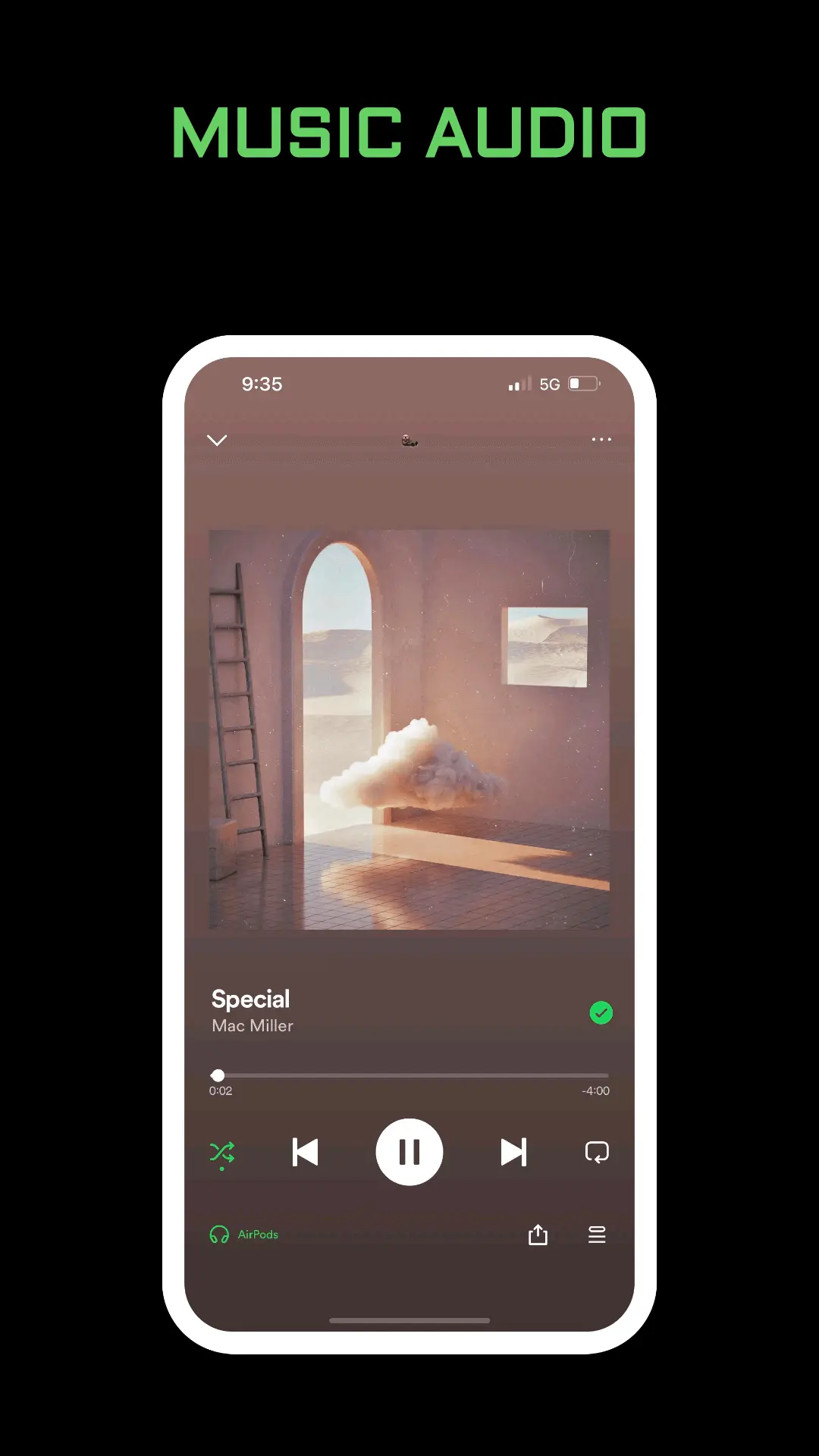
Autoplay, Data, and Connected Speakers
Leaving Autoplay on means more streaming minutes after your list ends, which uses mobile data. Spotify’s data help lists turning Autoplay off as one way to reduce usage, alongside Data Saver and lower quality. Those menus are in Spotify data saver and Spotify audio quality.
On Spotify Connect, the same account Autoplay preference usually follows the stream to a speaker or TV. If a party speaker keeps going after your curated playlist, turn Autoplay off on your phone, then reconnect. Connect basics are in Spotify Connect.
Podcasts and shows end differently from music Autoplay. Playback speed and episode skips are separate tools in Spotify playback speed and Spotify podcasts. Automix and gapless change transitions inside a playlist; they do not replace the Autoplay toggle. See Spotify Automix and Spotify gapless.
When Autoplay Feels Stuck
If similar songs still start after you disabled Autoplay:
- Confirm Repeat is not looping the context in Now Playing.
- Update the app, then toggle Autoplay off again under Playback.
- Log out and back in once so the account setting resyncs.
- Clear cache if the settings UI looks frozen; steps are in Spotify clear cache.
If Autoplay never starts when you want it, make sure you reached the real end of the album or playlist, not a paused queue item. Start from a finished Liked Songs filter or playlist in Spotify Your Library, then leave the session running without pressing pause.
Work playlists often need Autoplay off so a meeting does not open with a loud recommendation. Workout mixes may want it on so you never hit silence mid-set. Change the toggle when the context changes rather than leaving one setting forever. Crossfade still only blends songs you already queued; it will not restart Autoplay after you disabled similar content, as noted in Spotify crossfade.
Listening activity can show friends the Autoplay picks that follow your album. If that feels too revealing, combine Autoplay off with Private Session or tighter activity settings in Spotify listening activity.
Frequently Asked Questions
Where is the Spotify autoplay setting?
On mobile, open Settings and privacy, then Playback. On desktop, open Settings and find Autoplay. Change it there to sync across your account.
Does turning Autoplay off stop Repeat?
No. Repeat is a separate Now Playing control. Turn Repeat off if a list keeps restarting.
Can I change Autoplay only on the web player?
Set Autoplay in the mobile or desktop app. The web player follows that account preference even when it hides a local toggle.
Final Thoughts
Spotify autoplay is the similar-song continuation after your selection ends. Switch it under Playback on mobile or desktop, keep Repeat and queue separate, and turn it off when you need a clean stop or lower data use. Official Autoplay help remains the checklist when a speaker refuses to go quiet.