
Spotify Discord: Connect, Status, and Listen Along
Spotify Discord integration links your music account to Discord so friends can see what you play, open the track in Spotify, and — on Premium — Listen Along. Connection lives in Discord User Settings, not inside a hidden Spotify menu. This guide follows Spotify’s Discord article and Discord’s Connections help so you can connect, show status, Listen Along, and disconnect cleanly.
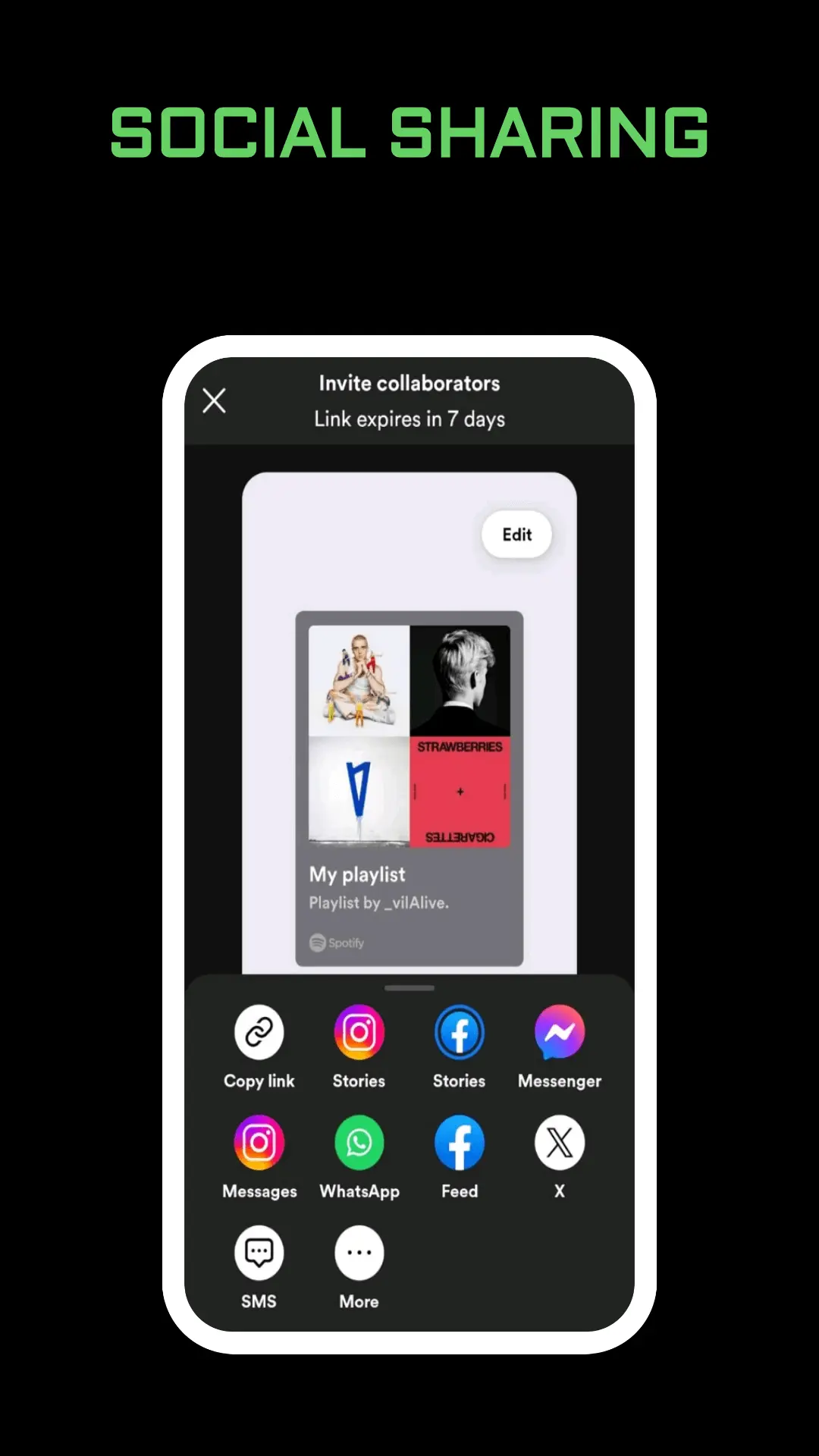
Connect Spotify to Discord
Spotify’s own help page keeps the desktop path short:
- Download and open the Discord app.
- Open Connections in the side menu (or User Settings, then Connections).
- Click Spotify.
- Log in or sign up on the Spotify page that opens.
Discord’s Connections FAQ matches that flow. On desktop, open the cog next to your username, open Connections, pick Spotify, and finish the login. On mobile Discord, open your profile, open Settings, open Connections, tap Add, then Spotify. A success toast confirms the link.
After the accounts connect, Discord lets you toggle how Spotify appears. Turn on Display Spotify as your status if you want the live track in your status. Turn on Display on Profile if you want the connection on your profile card. Play a song in the Spotify app on the same setup you use for Discord; the status updates when Discord can see that playback.
Showing a track on Discord is social, not the same as Spotify’s in-app listening activity for Spotify friends. If you hide plays inside Spotify but leave Discord status on, Discord friends can still see the song. Pair this guide with Spotify listening activity and Spotify private session when you need both layers quiet. Account security habits stay in how to keep your Spotify account safe whenever you authorize a third-party connection.
Status, Listen Along, and Limits
Once Spotify Discord is linked and status is on, friends see the current song on your mini profile and full profile when Discord shows it. From that profile they can use Play on Spotify to open the track, or Listen Along when Spotify and Discord allow it.
Listen Along is Premium on your side. Spotify’s steps:
- Find a friend who is Listening to Spotify in the friends list.
- Click Listen Along.
Spotify notes you cannot Listen Along while voice chatting. Use text chat if you want the shared stream. If you Listen Along with a friend on free Spotify, you hear silence during their ads. That silence is expected, not a broken device.
Listen Along is a Discord-side sync. It is not Spotify Jam, Blend, or a collaborative playlist. Jam keeps a shared session inside Spotify; see how to use Spotify Jam. Two-person taste mixes live in Spotify Blend. Queue edits inside Spotify stay in Spotify queue. Pick the tool that matches the room: Discord status for visibility, Listen Along for Premium sync in Discord, Jam when everyone should control the Spotify session.
Fix Status Gaps and Disconnect
If the status never appears, check the connection first in Discord Connections, then confirm Display Spotify as your status is on. Play music in the Spotify client Discord can detect. A Private Session inside Spotify can hide activity from Spotify friends; treat Discord toggles separately if the song still should not broadcast. Restart Discord after a fresh link if the tile shows connected but status stays empty.
To disconnect, Spotify’s desktop steps are:
- Open the Discord desktop app and open Connections.
- Click Spotify.
- Click the X next to the green box at the top.
- Confirm Disconnect.
Discord Support cannot remove the link for you; you must be logged into Discord. After disconnect, Listen Along and profile playback badges for that Spotify account stop until you connect again.
Authorizing Discord does not give Discord your Premium password forever in plain text inside a blog post, but it is still an OAuth grant. Revoke it when you stop using the feature. If a login email looks wrong after you connect apps, reset the password with how to change and reset your Spotify password and review connected apps.
Spotify Discord does not replace offline downloads, audio quality, or playlist editing. Those stay in the Spotify app. Use the connection only for presence and Listen Along, then return to Spotify for library work.
Frequently Asked Questions
Where do I connect Spotify Discord?
In Discord: User Settings then Connections, or Connections in the side menu on desktop. Click Spotify and finish the Spotify login page.
Do I need Premium for status?
Connecting and showing what you play does not require Premium. Listen Along does. Spotify marks Listen Along for Premium and blocks it during voice chat.
Why is Listen Along silent?
If the friend is on free Spotify, you hear silence during their ads. That matches Spotify’s Discord help page.
Final Thoughts
Spotify Discord is a Connections link plus optional status and Premium Listen Along. Connect in Discord, enable the display toggles you want, keep Private Session and listening activity in mind for Spotify-side privacy, and disconnect from the same Connections screen when you are done. Official Spotify and Discord articles remain the checklist when a menu label moves.