
Spotify Buffering: Fix Stalls on WiFi and Mobile Data
Spotify buffering stalls mid-song when the app cannot fetch the next chunk of audio fast enough. The spinner is annoying on a commute and worse during a workout when the beat drops out. Most fixes are network, quality, storage, or app health—not a cracked APK.
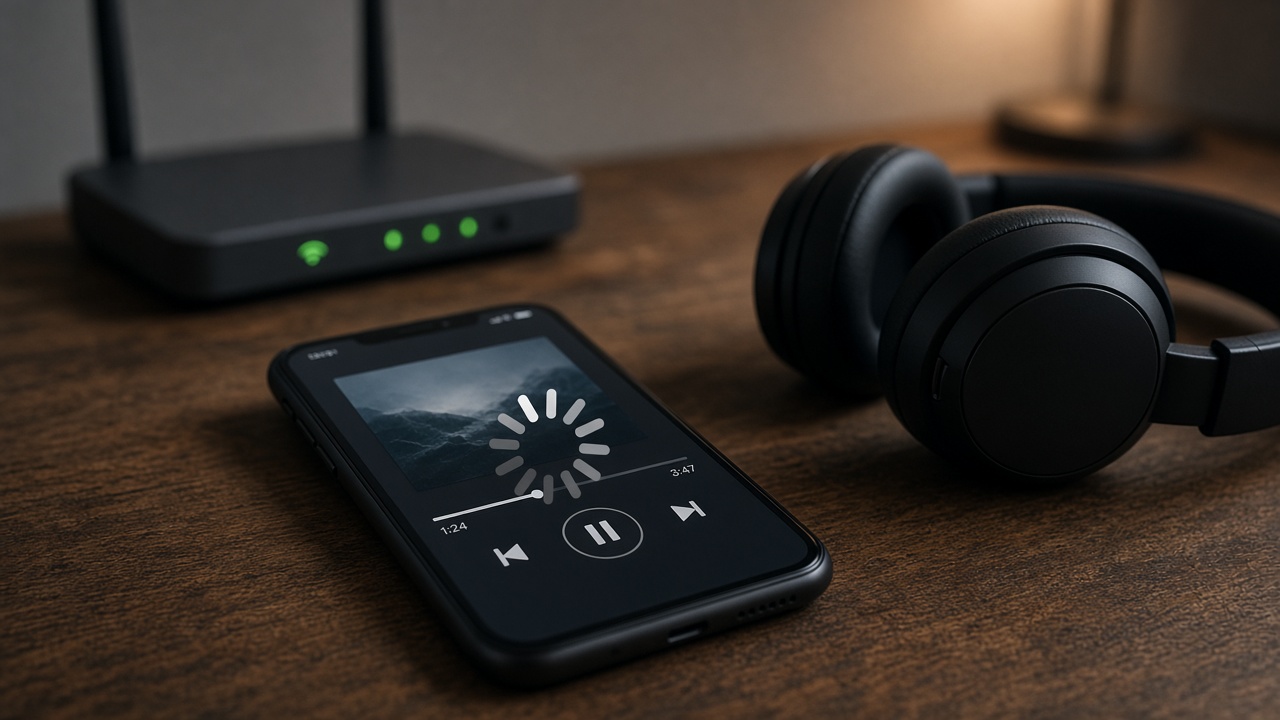
Use this checklist in order: stabilize the connection, lower quality or turn Auto-adjust on, free storage and clear cache, then update or reinstall from the official store. Premium users can sidestep flaky networks with offline downloads.
Why Spotify buffers
Streaming needs steady bandwidth. Congested Wi‑Fi, weak mobile data, VPN overhead, or many apps uploading in the background all shrink the pipe Spotify needs. Very High or Lossless quality multiplies that demand. A nearly full phone also hurts because Spotify relies on cache space to smooth playback—official guidance suggests keeping roughly 1 GB free.
Buffering is different from a full “Spotify not playing” failure, but the early steps overlap: restart the app, confirm you are online (not stuck in offline mode), and check @SpotifyStatus for outages before you rebuild your library.
Fix Spotify buffering in 10 steps
- Toggle airplane mode for 10 seconds, then reconnect to Wi‑Fi or LTE.
- Move closer to the router or switch bands (2.4 GHz often reaches farther; 5 GHz can be faster nearby).
- Close bandwidth hogs—cloud backups, video calls, large downloads.
- Disable VPN temporarily; some routes add latency.
- In Spotify → Settings → Media quality, lower Wi‑Fi/cellular streaming quality, or enable Auto-adjust so the app drops bitrate before it stutters.
- Turn on Data saver under Data-saving and offline if you are on cellular (see Spotify data usage).
- Clear cache (Settings → Data-saving and offline → Clear cache) and free storage—details in Spotify clear cache.
- Update Spotify and your OS; reinstall only from Google Play or the App Store if needed.
- Test the Spotify web player on another network. If the browser is smooth, the phone install or local Wi‑Fi is the culprit.
- Premium: download key playlists on Wi‑Fi and use offline mode when the signal is unreliable (Spotify offline mode).
Audio quality settings that reduce buffering
Automatic quality lets Spotify adapt. If you forced Very High or Lossless on a shaky hotspot, the buffer empties faster than it fills. Drop to Normal or High on cellular, keep Lossless for trusted home Wi‑Fi, and remember lossless needs roughly 1.5–2 Mbps steady. Pair quality tweaks with the broader Spotify audio quality guide when you want detail without constant stalls.
Video podcasts and Canvas visuals use extra data. For rough networks, prefer audio-only podcast streaming/downloads when that toggle exists under data-saving settings.
Hardware and environment checks
- Forget and rejoin Wi‑Fi; reboot the router if everyone in the house buffers.
- Try another DNS only if you know what you are doing—misconfigured DNS can look like “Spotify is down.”
- On desktop, allow Spotify through the firewall; blocked sockets often show as endless loading.
- Android SD card quirks: if downloads live on a failing card, move storage back to internal memory.
- Bluetooth headphones rarely cause classic buffering (that is usually network), but unstable Classic Bluetooth can sound like dropouts—test with wired audio once.
When only one playlist buffers
Skip to another album. If everything else is fine, the issue may be a temporarily busy CDN edge or a track unavailable in your market (grayed titles). Offline mode accidentally left on also makes online-only tracks struggle—turn Offline Mode off, then retry.
What not to install
Mods that promise “zero buffer premium” usually ship malware and violate Spotify’s terms. They will not repair your Wi‑Fi. Stick to official builds, legitimate Premium, and the steps above. If buffering started right after a shady sideload, remove it, change your password, and reinstall clean.
Quick prevention habits
- Download commuting playlists every Sunday night on home Wi‑Fi.
- Keep Auto-adjust on when you travel.
- Leave at least 1 GB free so cache can work.
- Avoid lossless on hotel Wi‑Fi.
- Update the app monthly.
Most Spotify buffering cases clear after a network reset plus a quality or cache pass. Work top to bottom once; if nothing changes on two networks and two devices, check Spotify’s status channels and device manufacturer support next.
Car, speaker, and Connect quirks
When you cast with Spotify Connect, the phone may look fine while the speaker starves for audio. Put both devices on the same Wi‑Fi band when possible, move the speaker closer to the router, and lower quality in the device’s Connect settings if Spotify exposes them. Bluetooth car adapters that also bridge weak phones through congested highways will still buffer—downloads matter more than another equalizer preset in that case.
If only podcasts stutter, try audio-only streaming and pause autoplay so the next episode does not prefetch against a thin connection. Music-only sessions usually recover faster after you free a few hundred megabytes of storage.
FAQ
Does Premium stop buffering?
Premium enables downloads and higher caps, but a dead signal still stalls streaming. Offline files are the real Premium advantage here.
Is clearing cache safe?
Yes. You may re-download art and temp audio; playlists stay on the account.
Why did lossless make it worse?
Larger files need more bandwidth. Lower quality until the connection stabilizes.