
Spotify Canvas Off: Disable Looping Visuals and Save Data
Want spotify canvas off so looping song visuals stop eating attention, data, or battery? Spotify’s Video and Canvas settings let you disable Canvas (and related video formats) across devices on your account—without installing a “no canvas” mod.
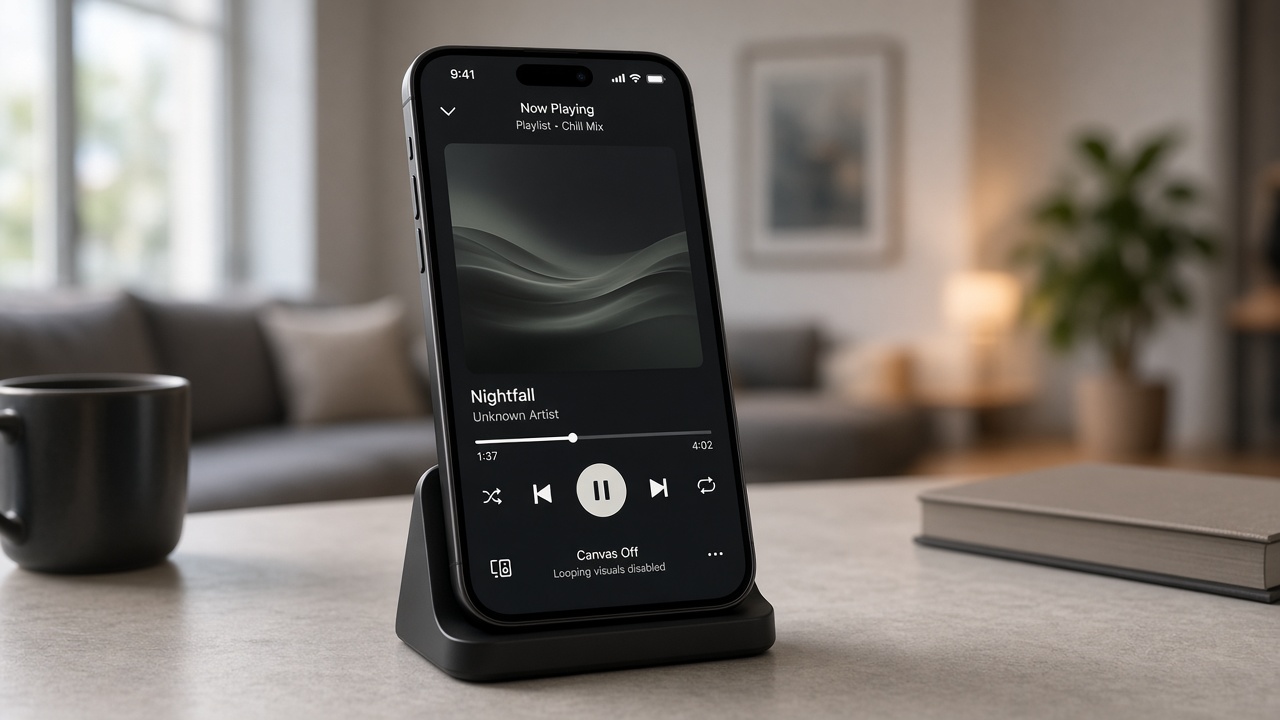
Canvas clips are short looping visuals tied to tracks. They are neat on Wi‑Fi and annoying on a hot phone in the subway. Official video settings: Video settings on Spotify Support. Broader Canvas context: Spotify Canvas.
What Canvas is (and is not)
Canvas is not a full music video. It is a looping visual that can appear in Now Playing. Music videos and “other videos” (video podcasts, creator clips) are separate toggles in the same settings group. Free plans may still show Canvas with some audio ads even when you prefer less motion—Spotify notes video ads cannot be turned off on ad-supported tiers.
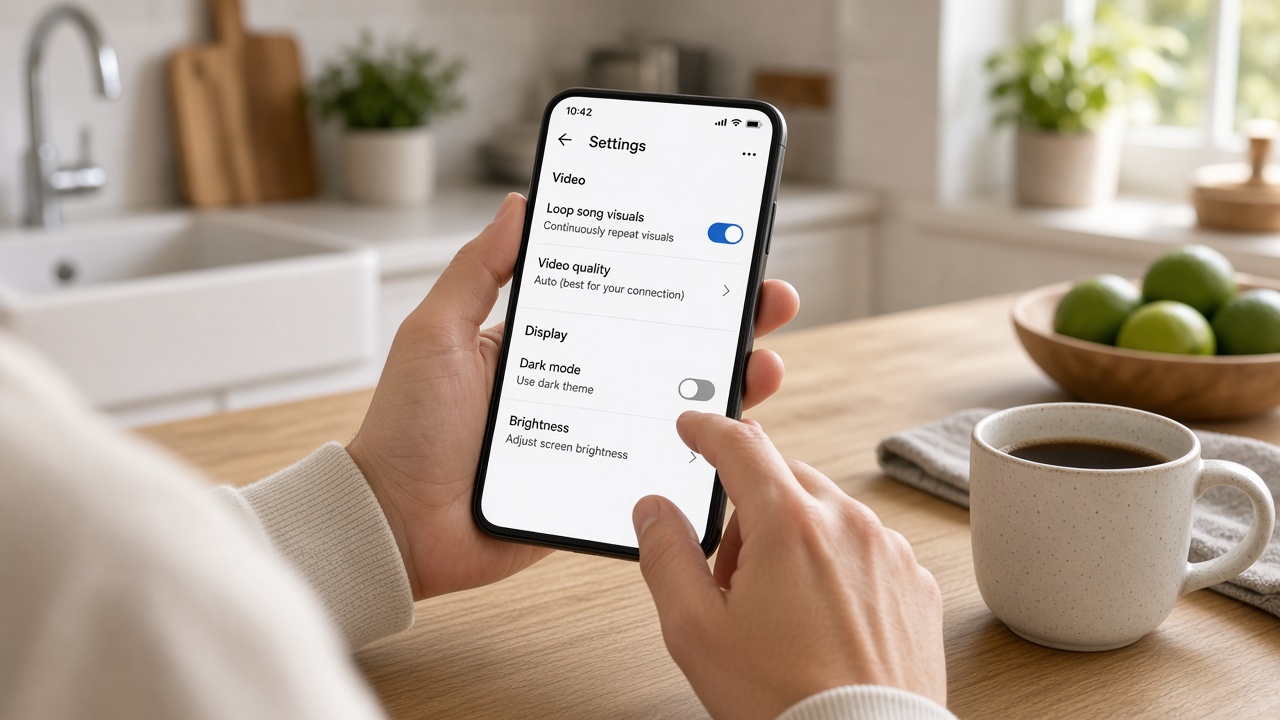
Turn Canvas off on mobile or tablet
- Tap your profile picture.
- Open Settings and privacy.
- Tap Content and display.
- Under Videos and Canvas, switch Canvas off.
- Optionally disable Music videos and Other videos if you want a calmer, lower-data experience.
These account-level switches apply across platforms where the same login is used, according to Spotify’s video settings help.
Turn Canvas off on web / desktop settings
- Open profile → Settings.
- Find Videos and Canvas.
- Toggle Canvas (and other video types) to match your preference.
After changing, force-close the mobile app once so clients refresh. If a clip still appears briefly, play a new track and confirm the toggle stayed off.
Family plan managers
Premium Family managers can control Videos and Canvas for members from Manage members / Your Premium → Manage on mobile or the account page on web. That helps keep Kids-managed experiences simpler and saves data on shared tablets. Household setup background: Family plan.
Why people disable Canvas
- Data: visuals add usage on cellular—pair with data usage and Data Saver habits.
- Battery: less GPU work on long commute playlists.
- Focus: lyrics and controls stay readable without motion behind them—see lyrics.
- Distraction while driving: prefer audio-only awareness; use car-safe setups from Spotify in the car.
Canvas vs music videos vs podcast video
Use the three toggles intentionally: keep music videos on for weekend browsing but Canvas off for weekday runs; or disable Other videos if vertical creator clips clog Home while you still enjoy Canvas art. Offline downloads of audio still work with Canvas disabled—you simply will not stream the looping visual.
Troubleshooting
Toggle missing. Update the app; labels live under Content and display / Videos and Canvas.
Still seeing motion. Confirm you edited the correct account; Family member settings may differ from the manager’s personal toggles.
Ads still show visuals on Free. Expected for some ad experiences—Canvas preference does not remove all commercial video.
Stay official
Skip Spicetify scripts or APKs that “force hide Canvas.” They break on updates and risk the account. Change settings inside Spotify and install only from spotify.com/download.
FAQ
Does Canvas off reduce audio quality?
No. Audio quality settings are separate—see audio quality.
Can I disable Canvas on one phone only?
Spotify documents these as account-wide video settings across devices for that login.
Will artists know I turned Canvas off?
No personal notification—you simply stop loading the visual.
Open Content and display, switch Canvas off, optionally trim other video types—and your spotify canvas off setup is done the supported way.
When to turn Canvas back on
On home Wi‑Fi with a charged phone, re-enable Canvas for album discovery nights—many clips are artistic and help you remember a track. Disable again before travel days. That toggle rhythm gives you the best of both worlds without third-party tools. If a specific track’s Canvas is distracting but you like others, you still use the global switch; Spotify does not offer per-song Canvas mute in standard settings, so global off is the reliable focus mode.
Creators who film reaction videos sometimes keep Canvas on for thumbnails, then disable it for editing sessions so screen recordings stay clean. Gym users on treadmills often prefer Canvas off so pace and heart-rate apps remain visible in picture-in-picture. Night listeners can pair Canvas off with a sleep timer and lower brightness for less stimulation before bed.
After major app updates, re-check Videos and Canvas—settings occasionally reset during big redesigns. A ten-second confirmation after each update prevents a surprise data spike on the next commute. Keep Data Saver and Canvas preferences aligned so you are not fighting the app on two fronts. When in doubt, leave Canvas off for a week and notice whether you miss it before turning it back on permanently.