
Spotify Create Playlist: Make and Edit Lists on Phone or Desktop
Learning to spotify create playlist the right way turns random Likes into road-trip sets, study mixes, and shareable party queues. Anyone with a free or Premium account can create lists in the mobile app, desktop app, or web player using Spotify’s official Create flow.
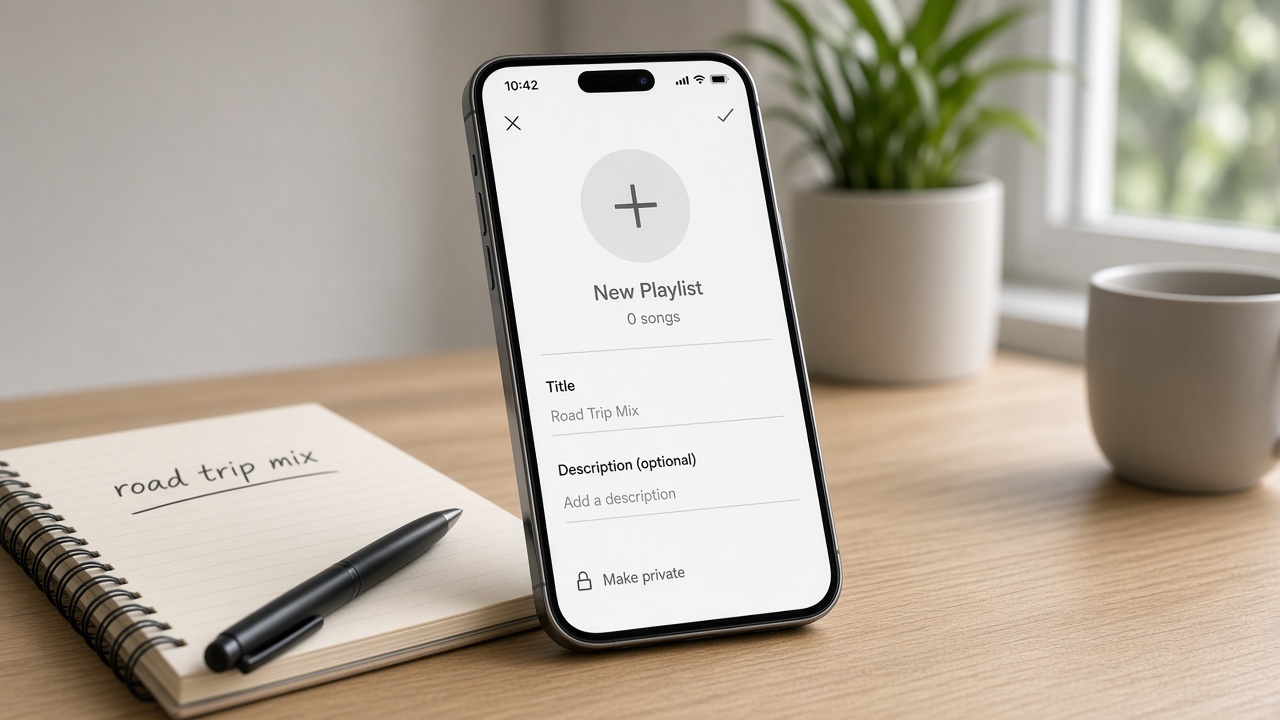
Below: create on mobile and desktop, add songs, edit covers and order, go collaborative or private, and avoid fake “playlist generator†logins. Official steps live on Spotify Support — create playlists.
Create a playlist on mobile
- Open Spotify and tap Create (or Your Library → Create).
- Select Playlist.
- Name it, then tap Create.
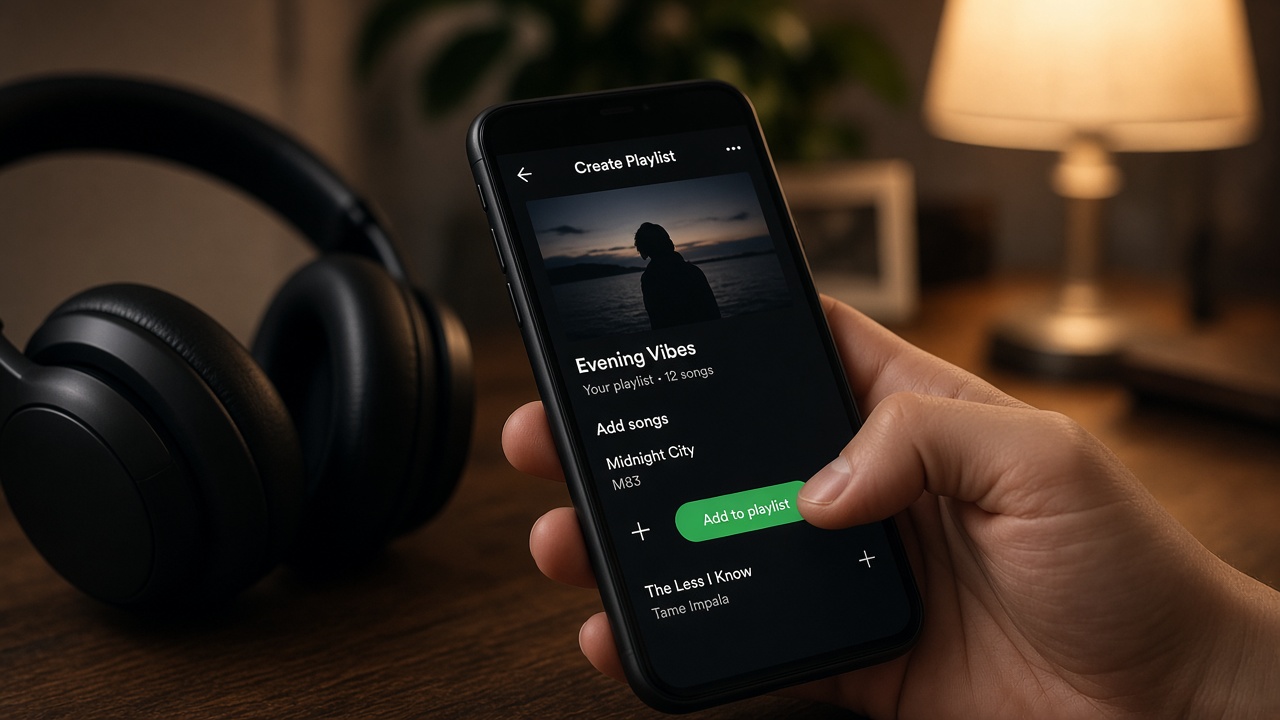
- Tap Add to this playlist or pick recommendations Spotify shows.
You can hide Create from the menu bar in some versions if the UI feels crowded—re-enable it from navigation settings when needed. Add later from any track menu: ⋯ → Add to playlist → choose the list → Done.
Create a playlist on desktop or web
- Go to Your Library.
- Click Create → Playlist (or press Ctrl+N / Cmd+N in the app).
- Edit the name and details → Save.
- Right-click songs → Add to playlist, or drag tracks into the list.
Desktop is ideal for bulk building after a merge playlists session or when importing from an old profile during a transfer playlist project.
Edit, cover art, and order
- Open the playlist → Edit to rename, change description, or remove tracks.
- Premium users can often tap-hold-drag to reorder on mobile; desktop drag works widely.
- Custom covers help you spot lists in Your Library—use images you have rights to.
- Sort/filter inside long lists when hunting duplicates.
Deeper library habits: Spotify playlist hub and pin playlist for daily drivers.
Private, public, and collaborative
New playlists default toward public/profile publishing depending on your privacy toggles. Flip to private for drafts—see private playlist. Invite friends to edit with collaborative mode when you want co-DJs. Folder unfinished ideas using a playlist folder.
Smart ways to fill a new playlist
- Start from Song Radio or an artist page, then Add to playlist on keepers.
- Use Prompted / AI playlist tools where Premium offers them, then prune.
- Enhance listening with Smart Shuffle, then tap + on recommendations you want permanent.
- Copy a friend’s public list structure, then replace tracks with your taste.
Downloads and offline
Premium can download the finished playlist for flights—follow download playlist and keep the 30-day online check-in. Free users still create playlists; offline music remains a Premium feature.
Mistakes to avoid
- Naming everything “New Playlist #12â€â€”use clear titles.
- Leaving birthday drafts public on your profile.
- Trusting browser extensions that “auto-build†lists after you paste a password.
- Hitting the ~10,000 track cap; split volumes instead.
Install Spotify only from spotify.com/download.
FAQ
Is creating playlists free?
Yes. Free and Premium accounts can create and edit playlists.
Can I create folders instead of playlists?
Folders organize playlists; you still create playlists inside them.
Why don’t I see Create?
Update the app or unhide Create in navigation settings.
Name it, add tracks, set privacy, pin if needed—that is all it takes to spotify create playlist sets you will actually reuse.
Template ideas that rank in your own habits
Keep five evergreen templates: Focus, Gym, Cook, Guests, Sleep. Duplicate a template before each trip so the master stays clean. After concerts, create a “Tour 2026†list the same night while setlists are fresh. Share sparingly; oversharing unfinished lists trains friends to ignore your links. Review once a month, merge micro-lists, and delete empties so Your Library stays scannable.
When you create from Search, star a few seed tracks first so Spotify’s “Add to this playlist†suggestions match the mood. On desktop, keep the playlist open in the right pane while you browse Release Radar, then drag keepers in without losing place. Description fields are underrated—write “90–110 BPM / no ballads†so future collaborators understand the rules. If you make bilingual titles, put the language you search most first.
Parents creating Kids-friendly lists should enable explicit filters on managed accounts and double-check each add. Students building semester focus lists can duplicate last term’s playlist and swap textbooks-era tracks instead of starting from zero. Podcasters who only need episode queues should still create a music bumper playlist for transitions rather than mixing talk and songs in one chaotic list.
Finally, after you create and fill a list, play it once all the way through at low volume. Skip ruthlessly. A playlist you trust beats a 300-song graveyard you never open. That habit is the real difference between knowing how to create a playlist and actually enjoying one. When friends ask for your “secret,†send the finished link—not a screenshot of fifty unsorted Liked Songs.
If Create ever fails to sync across devices, force-close the app, confirm you are online, and reopen Your Library. Rarely, a rename needs a second save on desktop before mobile shows the new title. Patience for a 10-second refresh beats creating duplicate lists with the same name.