
Spotify Merge Playlists: Combine Lists Without Third-Party Tools
Need to spotify merge playlists into one tidy set for workouts, road trips, or a wedding reception? Spotify has no single “Merge†button, but you can combine lists officially by copying tracks into a destination playlist on desktop or mobile—without shady third-party merger sites.
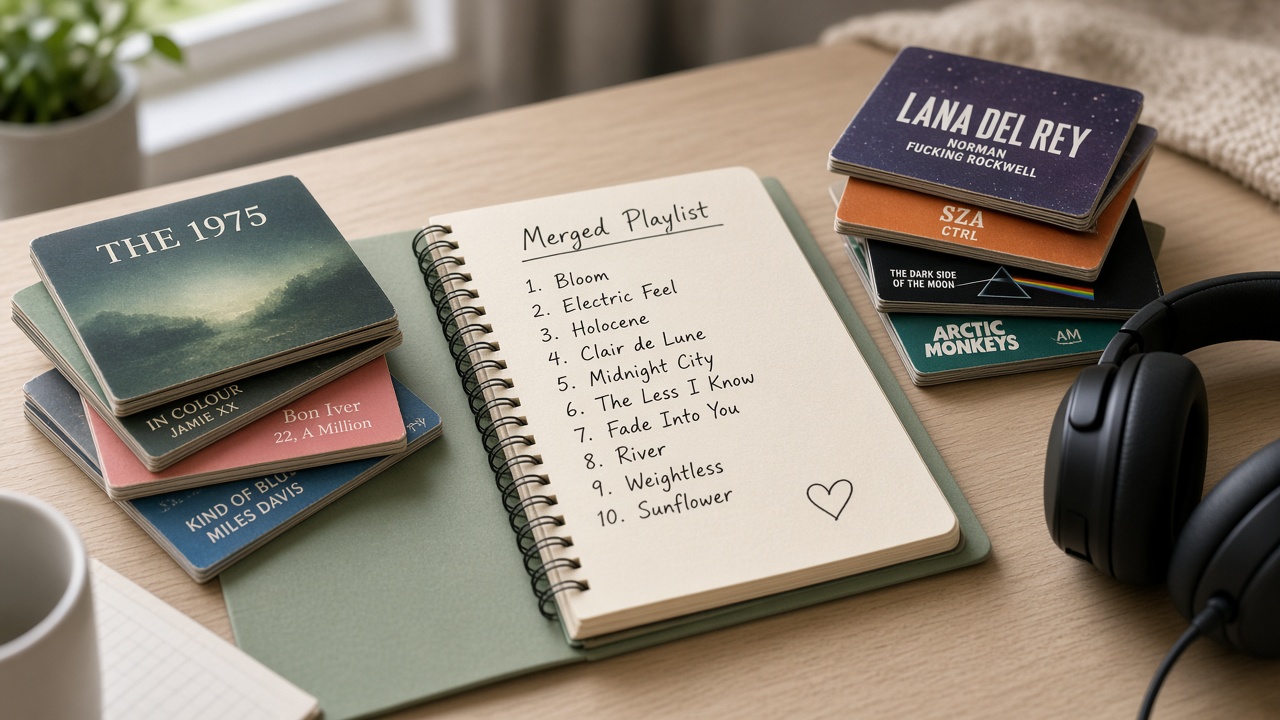
This guide covers desktop bulk select, mobile “Add to other playlist,†duplicate warnings, the 10,000-song playlist cap, and how to organize the result with folders and pins. Stick to the official app from spotify.com/download.
What “merge†really means on Spotify
You are copying song references from one or more source playlists into a target list (existing or new). Source lists stay intact until you delete them. Collaborative lists can receive copies if you have edit rights. Liked Songs is not a normal playlist, but you can select tracks there and add them into a named list first.
For general playlist mechanics see Spotify playlist and official create/edit help on Spotify Support.
Merge playlists on desktop (fastest)
- Open the Spotify desktop app and go to the source playlist.
- Click one track, then press Ctrl+A (Windows) or Cmd+A (Mac) to select all—or Ctrl/Cmd-click individual songs.
- Right-click the selection → Add to playlist.
- Choose an existing destination or New playlist.
- Repeat for every other source list you want inside the merge.
- Optional: delete or archive old sources after you verify the combined order.
When Spotify warns about songs already in the destination, choose to add only new ones so you avoid clutter. Sort by title afterward to spot remaining duplicates manually.
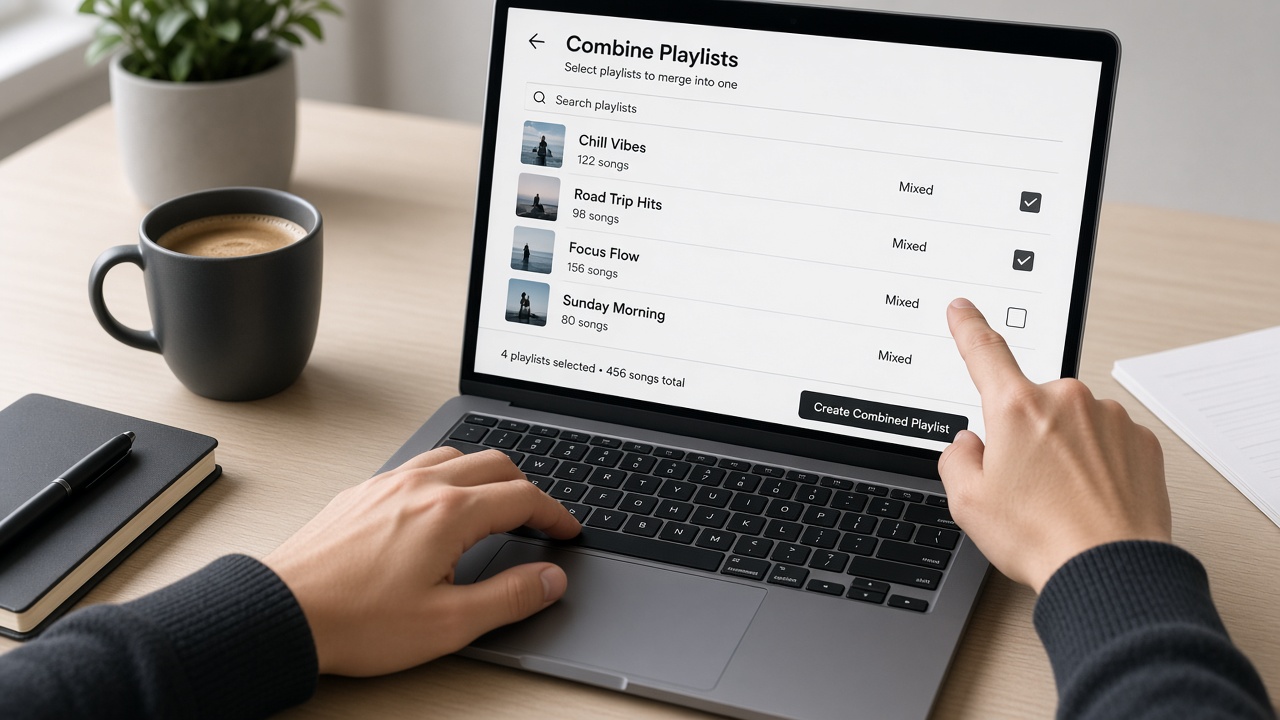
Merge on mobile
- Open Your Library → Playlists → source list.
- To copy the whole list: tap the playlist menu (⋯) → Add to other playlist / Add to playlist (wording varies).
- Pick the destination or create a new playlist → Done.
- To cherry-pick: open track ⋯ → Add to playlist for each song (slower but precise).
Mobile multi-select tools improve over time; if your build lacks bulk select, finish big merges on desktop, then manage listening on the phone.
Limits, duplicates, and quality control
- Playlists top out around 10,000 tracks—split mega-merges into Volume 1 / Volume 2.
- Grayed regional tracks still copy; they may not play in every country.
- After merging, reorder on Premium by drag-and-drop; Free users can still curate by removing tracks.
- Turn on Mix transitions later if you want DJ-style blends—see mixed playlist.
Organize the merged result
Pin the finished list for one-tap access with pin playlist. File seasonal merges inside a playlist folder. Keep drafts private until ready via private playlist. Download the final version for travel with download playlist.
Collaborative and Blend caveats
Merging into a collaborative playlist shares the new tracks with co-editors. Blend lists are special social mixes—copy tracks out to a normal playlist if you need a stable merge you fully own. Do not paste passwords into “auto merge all playlists†browser extensions.
Suggested merge workflows
- Gym stack: combine Warmup + HIIT + Cooldown into “Gym Master.â€
- Party stack: merge guest collaborative lists into one host-controlled set, then Mix.
- Cleanup: merge tiny 5-song leftovers into theme folders, then delete empties.
Troubleshooting
Add to playlist missing. Update the app; confirm you own or can edit the destination.
Selection won’t stick. Click inside the track list pane before Ctrl/Cmd+A.
Duplicates everywhere. Use Spotify’s “add new ones†prompt; sort by title to prune.
Stay official
Skip websites that ask you to OAuth “merge tools†with full account access. Manual copy inside Spotify is safer and keeps taste history clean. Download only from Spotify’s site.
FAQ
Does merging delete the old playlist?
No—copying leaves sources until you delete them.
Can Free users merge?
Yes. Creating and editing playlists works on Free; Premium adds extras like drag reorder on mobile in many builds.
Will Liked Songs merge automatically?
No. Copy Liked tracks into a playlist first if you need them in the merge.
Select, Add to playlist, verify duplicates, organize—and you have a clean spotify merge playlists result without unofficial apps.
Desktop keyboard tips that save time
After Ctrl/Cmd+A, keep Shift held to trim the selection from the bottom if intros or podcast episodes sneaked in. Use the filter box inside large playlists to isolate one artist before copying a subset. Name destinations with a date stamp (“Road 2026-11â€) so you never overwrite last year’s merge by mistake. When you finish, play the first and last ten tracks as a sanity check before deleting sources.
If you maintain both a “clean radio†edit and an explicit cut, merge into two destinations rather than one compromised list—Family listeners will thank you later. After big merges, clear local downloads of obsolete source playlists so storage does not balloon overnight. Finally, share only the destination link; sending five half-merged URLs confuses guests and dilutes your curator reputation.