Spotify Audio Quality
Spotify audio quality is the bitrate and format Spotify uses for the stream or the download. Free and Premium do not get the same ceiling, and the web player does not use the same numbers as the apps. This guide follows Spotify’s quality table and the settings path on a phone, a computer, and the web player.
What Each Spotify Audio Quality Level Means
Spotify publishes approximate rates. “Approximately” is their word. A busy network can still make Automatic pick something lower.
On the web player, free accounts stream AAC at 128 kbit/s. Premium on the web player streams AAC at 256 kbit/s. You cannot adjust music quality in the web player. Spotify tells you to download the app if you want more control.
On desktop, mobile, and tablet, both free and Premium include:
- Automatic, which depends on your network connection.
- Low, about 24 kbit/s.
- Normal, about 96 kbit/s.
- High, about 160 kbit/s.
Premium on those apps adds two more rows on Spotify’s table. Very high is about 320 kbit/s. Lossless is listed as up to 24-bit/44.1 kHz FLAC. Where that lossless tier actually appears depends on plan and device. The setup for that row is in Spotify lossless. Picking High does not turn lossless on, and opening the lossless guide is the right next step if Very high is not the ceiling you wanted.
Podcasts are separate. Spotify says podcast quality is about 96 kbit/s on devices other than the web player, where it is 128 kbit/s. On a phone or tablet, if you set audio quality to Low, podcast quality drops to about 24 kbit/s as well.
Change the Setting
Turn quality up to hear finer detail, or down to save data. Higher streaming quality uses more data. Higher download quality uses more storage. Spotify also says you can change the audio settings on another device when you use Spotify Connect to play on that device. That is the Connect case for this page, explained more broadly in Spotify Connect.
On a phone or tablet you can use different settings for Wi-Fi and for cellular. Those are the streaming quality choices. You can also choose download quality. The taps are:
- Tap your profile picture at the top.
- Tap Settings and privacy.
- Under Media Quality, select the settings you want.
Auto-adjust is on by default. The app lowers or raises quality so music keeps playing instead of stuttering. Switch Auto-adjust off if you want the level you picked to stay put. On a weak network, leaving it on is what stops the dropouts. Turning it off does not raise you above the plan’s ceiling. A free account still will not get Very high.
On a computer:
- Click your profile picture at the top and select Settings.
- Under Audio Quality, select the settings you want.
Desktop uses the label Auto adjust quality for the same default behavior. Switch it off only when you want a fixed choice. The web player still has no quality menu. Use the app for Low through the Premium tiers.
Quality, Data Saver, and Downloads
Three neighbors in Settings are easy to confuse with the quality menu.
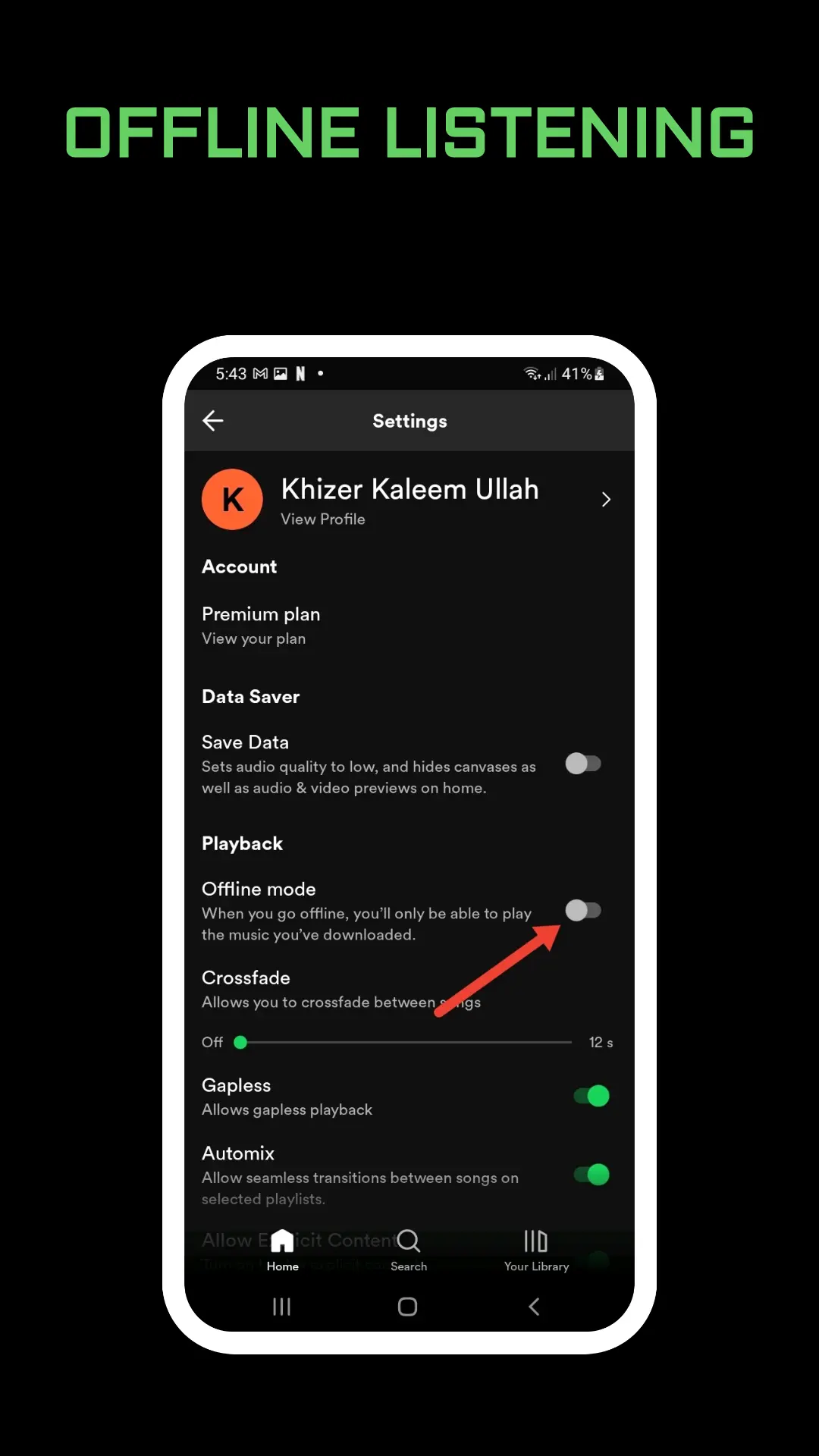
- Spotify data saver is its own switch for using less mobile data. Low quality also uses less data, at about 24 kbit/s, but data saver is not the Media Quality row. You can set a streaming quality and still decide about data saver separately.
- Downloads store a file for offline play. Higher download quality takes more space. The steps to save songs are in how to download songs from Spotify. Changing streaming quality does not by itself download the playlist.
- Spotify equalizer changes tone, not bitrate. A bass boost does not turn High into Very high.
- Spotify Canvas is the looping visual on a phone. It is not an audio bitrate. Hiding Canvas does not change kbit/s.
- Spotify volume normalization evens loud and quiet tracks. It does not pick AAC or FLAC. A track can be Very high and still jump in loudness if normalization is off.
If the stream stutters, Automatic or Auto-adjust is the control Spotify built for that. If the stream is clear but dull, step from Normal to High, or to Very high on Premium in the app. If you need the FLAC row, use the lossless guide instead of expecting the web player to offer it.
Frequently Asked Questions
Why can’t I pick Very high?
On Spotify’s table, Very high and Lossless sit in the Premium column for desktop, mobile, and tablet. Free accounts on those apps stop at High, about 160 kbit/s. The web player is a different row: 128 kbit/s free, 256 kbit/s Premium, with no quality menu at all.
Does Low change podcasts?
On a phone or tablet, yes. Setting audio quality to Low lowers podcast quality to about 24 kbit/s. Otherwise podcasts are about 96 kbit/s, or 128 kbit/s on the web player.
Will a higher setting always use that rate?
Automatic follows the network. Auto-adjust, which is on unless you turn it off, moves quality so playback does not stutter. A fixed High or Very high setting is what you get when those automatic behaviors are not overriding it, and only inside what your plan allows.
Final Thoughts
Set Spotify audio quality under Media Quality on a phone, or under Audio Quality on a computer. Free and Premium share Low, Normal, and High on the apps. Premium adds Very high at about 320 kbit/s, and the lossless row is a separate tier. The web player stays at 128 or 256 kbit/s AAC and will not show the same menu. Use data saver and downloads when the question is data or storage, not the name of the quality level.

