
Spotify Offline
Spotify offline is how you keep music and podcasts playing when the internet drops. Premium accounts can download albums, playlists, and podcasts. On the free plan, downloads are limited to podcasts. Saved items also have a device cap and a 30-day check-in. This guide follows Spotify’s listen-offline steps for the download, for Offline Mode, and for removing files you no longer want.
What Spotify Offline Can Store
Spotify’s listen-offline page draws a hard line between plans. On Premium, you can download albums, playlists, and podcasts. On the free version, you can only download podcasts.
You cannot download one song by itself. Spotify says to put that song in a playlist, then download the playlist. Building that list is a separate job, covered in Spotify playlist. The download control on the playlist is the same idea as the older walkthrough in how to download songs from Spotify. This page is about the offline rules around that button.
Two limits apply once the files are on the device:
- You can download as many as 10,000 tracks on each device.
- You can do that on up to 5 different devices.
You also need to go online at least once every 30 days to keep the downloads. Spotify says this is so it can collect play data and compensate artists.
Download, Then Allow Cellular If You Need It
On a phone or tablet, go to the album, playlist, or podcast while you are online and tap to download it to Your Library. You cannot start from a single loose song. On a computer, go to the playlist while you are online and click the download button. Spotify’s desktop steps are written for a playlist.
You can check the status next to each song, podcast, or playlist. One state means the download succeeded. The other means tracks were not downloaded. If the second state sticks, Spotify’s own checks are: an active internet connection, enough storage (it recommends at least 1 GB free), staying inside the 5-device limit, turning off cache-clearing or battery-saving apps, restarting the app, or reinstalling. A reinstall means you must download the music and podcasts again.
Spotify uses Wi-Fi for downloads by default, to save mobile data. To allow a download on a cellular connection:
- Tap your profile picture at the top.
- Tap Settings and privacy.
- Tap Data-saving and offline.
- Under Downloads and streaming, switch Downloads over cellular on.
That cellular switch is not the same as Spotify data saver, which lowers how much data a live stream uses. Offline files are already on the phone. Data saver does not create them, and turning downloads over cellular on does not pick a bitrate. Higher download quality takes more space. Those quality rows are in Spotify audio quality.
Turn Spotify Offline Mode On
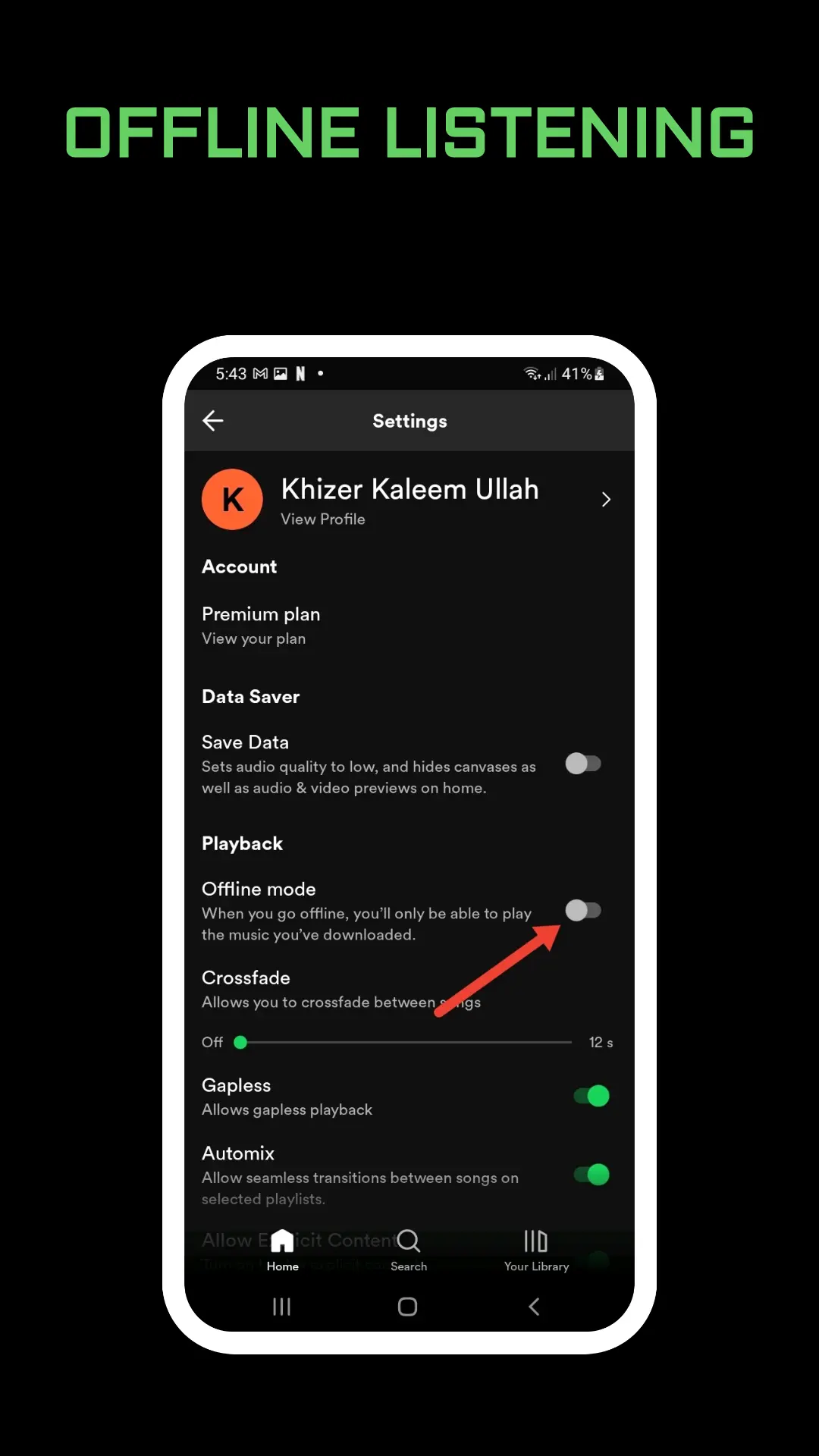
Downloads play automatically when you lose internet. Offline Mode is stricter. Spotify says it makes sure only your downloads play.
On a phone or tablet:
- Tap your profile picture at the top.
- Tap Settings and privacy.
- Tap Data-saving and offline.
- Switch Offline mode on.
On a computer, open Spotify. On a Mac, use the Apple menu at the top of the screen, click Spotify, then select Offline Mode. On Windows, click the menu at the top of the screen, click File, then select Offline Mode.
Anything you have not downloaded is then grayed out and unavailable. Turn Offline Mode off when you want the full catalog again. If a downloaded song still will not play, check why Spotify keeps pausing.
Why a Download Disappears
Spotify lists five reasons a track, playlist, or podcast may no longer be downloaded:
- You did not go online at least once in 30 days.
- You reinstalled the app.
- You downloaded to more than 5 devices. Downloads are removed from the device you used least recently.
- The Spotify app is not up to date.
- The SD card, if you use one, is not working properly.
To remove every download from a phone:
- Tap your profile picture at the top.
- Tap Settings and privacy.
- Tap Data-saving and offline.
- Under Storage, select Remove all downloads.
To remove one album or playlist yourself, open Your Library. On mobile, tap Downloaded, open the item, tap the green arrow button, then tap Remove. That removes the saved copy. It does not delete the playlist from your account, and it does not delete a song from Spotify’s catalog.
Files you copied onto the device yourself are a different shelf. Those are Spotify local files. Offline Mode does not scan your camera roll or your Downloads folder. If a song never came from a Spotify playlist download, it will not show up as an offline Spotify track.
Frequently Asked Questions
Can I save one song for Spotify offline?
Not as a single track. Add it to a playlist, then download that playlist. Premium can also download an album or a podcast. The free plan can download podcasts only.
Do I have to turn on Offline Mode for a flight?
No. Spotify says downloads play automatically when you lose internet. Turn Offline Mode on when you want everything that is not downloaded to stay gray, so the app does not try to open the rest of the catalog.
Why did the songs vanish after a month?
The listen-offline page says you must go online at least once every 30 days. A reinstall, a sixth device, an outdated app, or a bad SD card can clear them too. Download the playlist again after you fix that cause.
Final Thoughts
Spotify offline starts with a download of a playlist, album, or podcast, not a lone song. Premium covers the music. The free plan stops at podcasts. Stay within 10,000 tracks on each of 5 devices, and open the app online once every 30 days. Use Offline Mode when you want only those saved items to play, and use Remove all downloads when the phone needs the space back.