
Spotify Hide Podcasts: Filter Music-Only Without Risky Mods
Want to spotify hide podcasts so Home and Library feel like a music app again? Spotify does not offer a permanent “delete all podcasts forever†switch, but you can filter Home to Music, tidy Your Library, shape recommendations, and avoid shady desktop mods that claim to strip shows permanently.
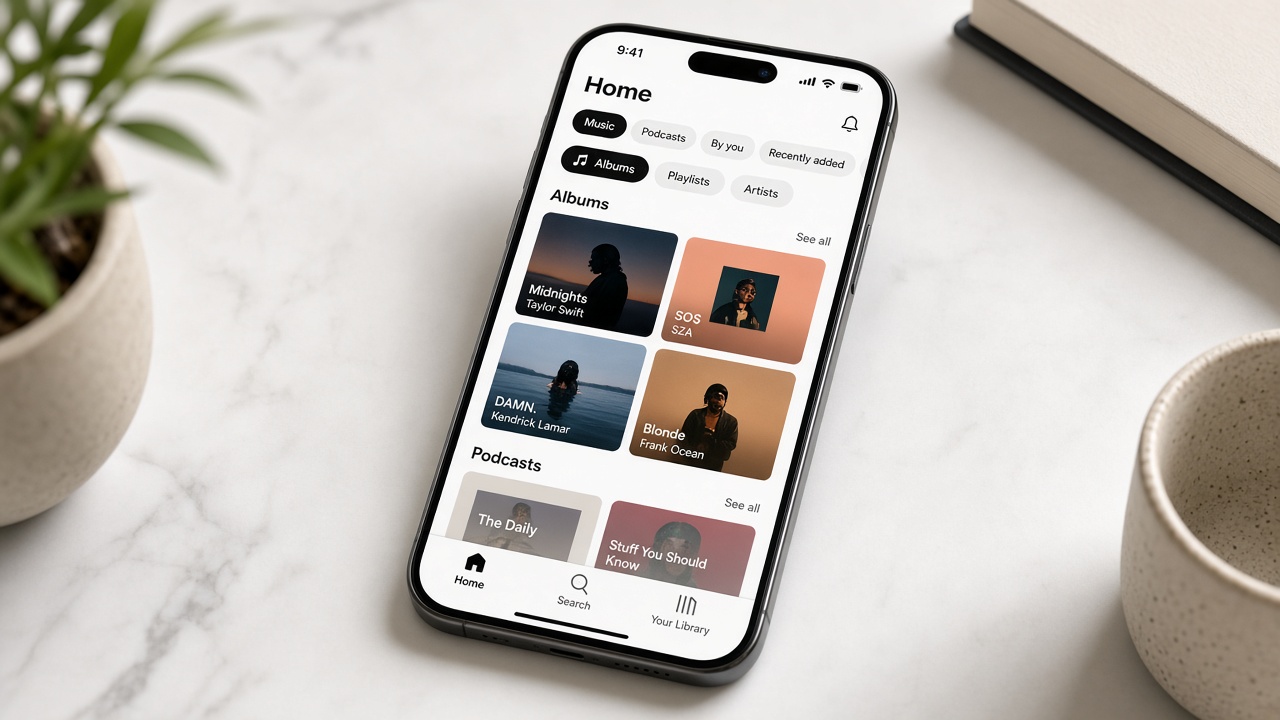
This guide sticks to official filters, taste-profile tools, and notification controls. Links below stay on Spotify’s site or our own how-tos—no third-party “hide podcasts†injectors.
What you can and cannot hide
Spotify confirmed in help and community guidance that listeners can filter Home to only music or only podcasts, and use Library/Search filters. Those chips often reset when you reopen the app—there is no lasting global “music only default†for every surface yet. You also cannot uninstall the podcasts product line from a normal account.
What works well: Music filter on Home, Playlists/Albums filters in Your Library, excluding noisy shows from your taste profile, and turning down show alerts in notifications.
Filter Home to Music
- Open the Spotify Home tab.
- Look for content filters (Music / Podcasts / Audiobooks—labels vary by market and app version).
- Tap Music so shelves prioritize albums, playlists, and artist rows.
- Scroll; podcast carousels should drop out of that filtered view.
Reapply the chip after a full app restart if it returns to All. Treat it like a quick lens, not a permanent preference file.
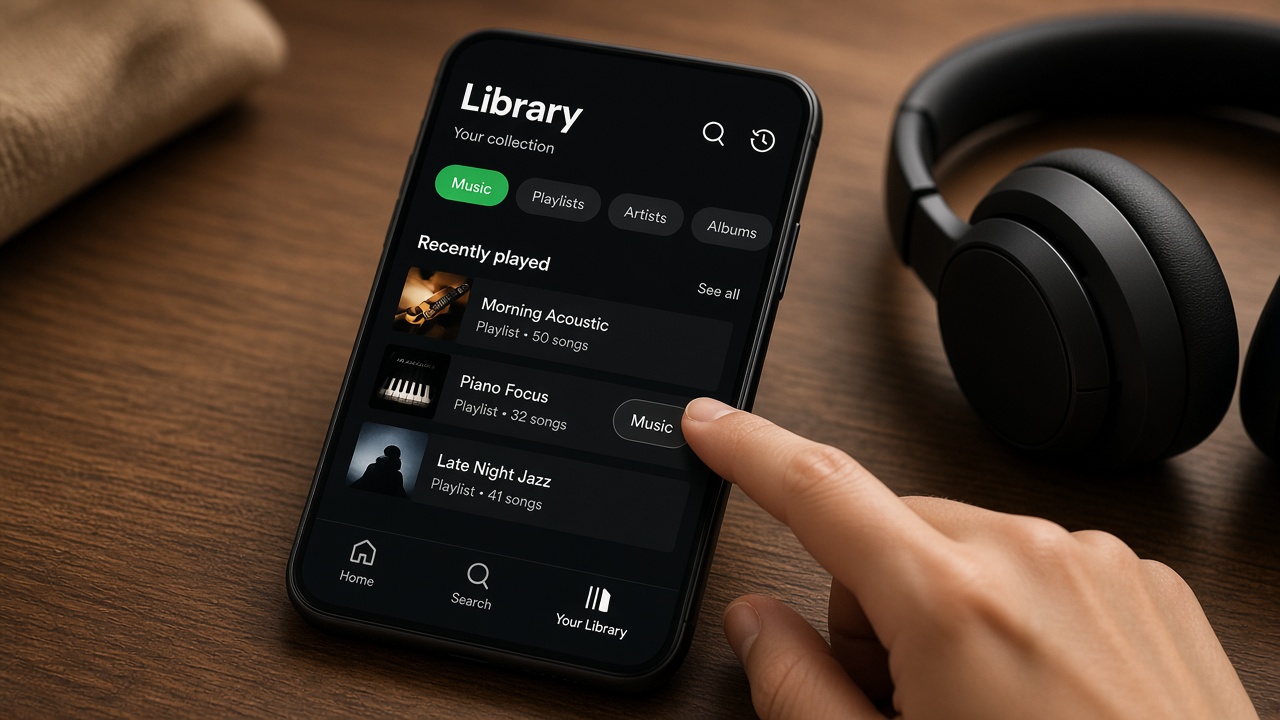
Clean Your Library and Search
- In Your Library, choose filters such as Playlists, Artists, or Albums instead of Podcasts / Shows.
- Use library search when you only need music titles.
- On Search, skip podcast category cards; type artist or song names directly.
- Unfollow shows you no longer want auto-saving new episodes—open the show → Unfollow / Stop following.
Pin music staples so they float above mixed clutter—see pin playlist. Group focus lists in a playlist folder so podcast leftovers never sit beside workout sets.
Influence recommendations without mods
Spotify’s safety and privacy center explains that engagement trains recommendations. To push podcasts down:
- Exclude talk-heavy playlists or kids/family shelves from your taste profile when the control appears.
- Hide or snooze individual tracks/episodes you dislike so they stop resurfacing in that context.
- Follow more music artists and finish music sessions so the graph leans melodic.
- Use Made for You music mixes rather than show hubs when you want discovery—browse Made for You.
Official overview: Understanding recommendations on Spotify.
Notifications and Home following feeds
Disable podcast episode pushes if they keep pulling you back into shows. On Home music subfeeds, filter to creators you follow when that option exists so talk-show promotions matter less. Managed Kids accounts have separate parental tools—adult music-only goals still use the filters above.
Why Spicetify-style “hide podcasts†tools are a bad idea
Desktop injectors that permanently strip podcast UI violate Spotify’s client integrity, break on updates, and often need scripted installs that risk account credentials. They are not supported. If a site promises “spotify hide podcasts apk,†skip it—stick to filters and official Spotify downloads.
Audiobooks and video shows
Audiobook hours on Premium plans are separate from music playlists. Filter them the same way you filter podcasts when chips appear. For video podcasts eating data, prefer audio-only streaming toggles under data-saving settings when available, and manage downloads carefully.
A practical daily routine
- Open Home → tap Music.
- Jump to pinned playlists.
- Ignore Search category tiles; type queries.
- Once a month, unfollow abandoned shows.
- Review taste-profile exclusions if talk keeps returning.
Music-first setup for commuting
Download only music playlists for Offline Mode so grayed podcast episodes never tempt you underground. Keep Autoplay on music contexts or off entirely if talk shows leak into the queue after albums end—see our Autoplay and queue guides when you refine that behavior. On shared Family profiles, teach each member to tap Music on their own Home; one person’s podcast binge should not redefine your morning filter habit.
If Search keeps surfacing show hosts, type quotation marks around song titles or add “band†/ “live†qualifiers. Clear recent searches that were podcast-heavy so suggestions calm down. For creators who release both music and talk, follow the artist profile for releases and unfollow the separate show entity.
Revisit filters after major app updates—Spotify redesigns Home chips periodically. A two-minute Music tap after each update restores the calm layout faster than installing an unsupported client skin. Patience beats risky mods every time.
FAQ
Can I delete the Podcasts tab forever?
Not with a supported setting. Filters are the official path.
Do filters sync across phone and desktop?
Behavior can differ; reapply Music on each client after updates.
Will hiding podcasts cancel Premium?
No. Billing is unrelated to Home filters.
Use Music filters, unfollow shows, tune recommendations, and skip injectors—that is the safe way to spotify hide podcasts noise while keeping the real app intact.