
Spotify Enhance: What Replaced It and How to Use Smart Shuffle
Searching for spotify enhance? Spotify’s older Enhance button—which wove recommended tracks into your playlists—has evolved into Smart Shuffle, a play mode that mixes your songs with vibe-matched suggestions. This guide explains what Enhanced used to do, how to get the same discovery today, and how to save or reject recommendations without shady playlist tools.
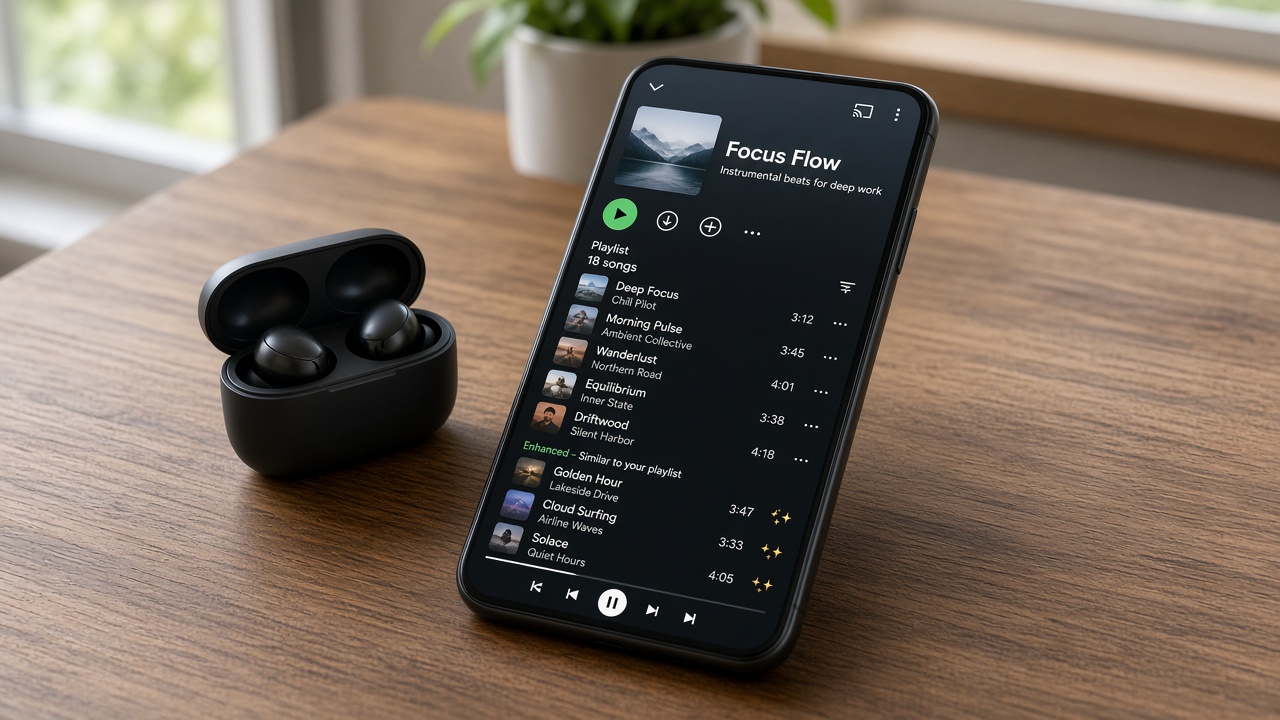
If your app no longer shows Enhance, you are not broken—the feature was replaced. Use Smart Shuffle on Premium mobile playlists (and Liked Songs), or lean on Made for You mixes when you want a full refresh.
What Spotify Enhance was
Enhance (2021) let Premium users toggle personalized recommendations inside a playlist they created. Suggested songs appeared between your tracks; you tapped + to keep them permanently. It was an editing aid more than a shuffle mode.
Spotify later launched Smart Shuffle as the successor: instead of only staging suggestions in the list UI, it plays your tracks and recommendations together in a shuffle session, marked with a sparkle-style indicator on recommended items. Community and newsroom notes confirm Enhance capabilities moved into that play mode.
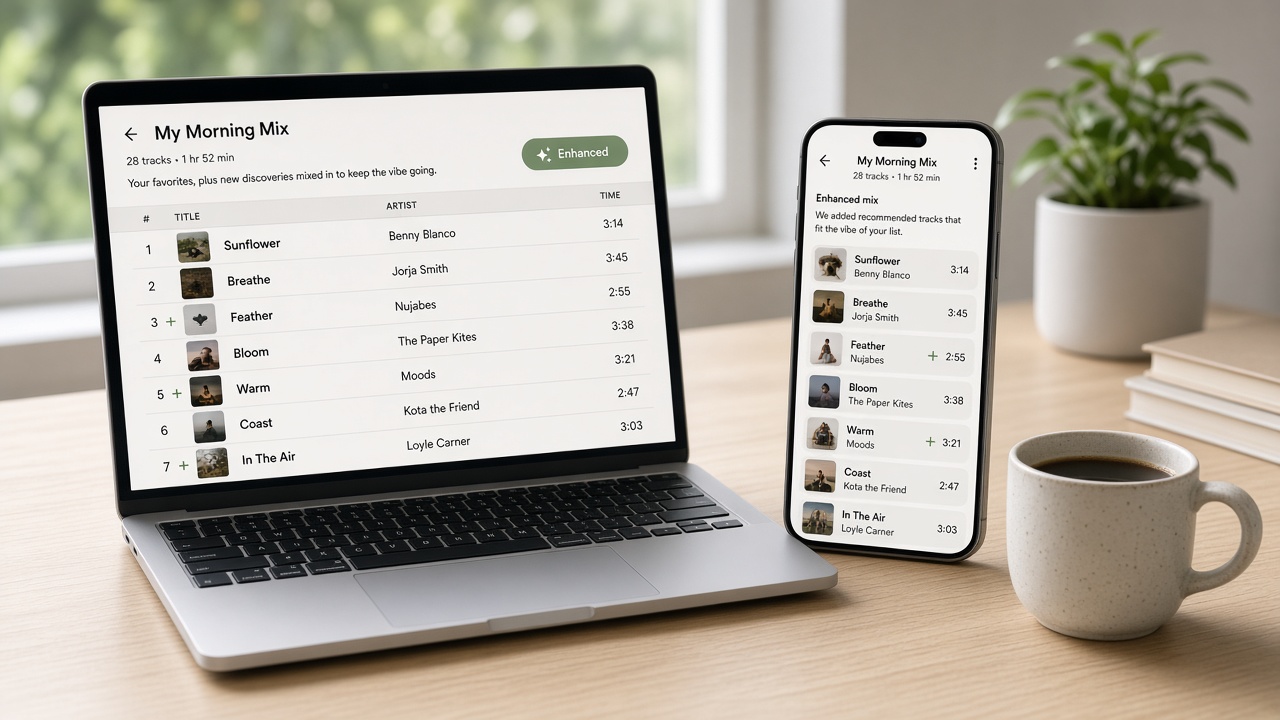
How to use the Enhance replacement (Smart Shuffle)
- Update the official Spotify app from Google Play or the App Store.
- Open a playlist you own (or Liked Songs) with enough tracks—Smart Shuffle works best with a solid library (often cited around 15+ songs for meaningful mixes).
- Start playback, then tap the shuffle control until you cycle to Smart Shuffle (sparkle / recommendations mode—not plain shuffle).
- Listen: recommended tracks appear mixed in; identify them via the recommendation marker next to the title/artist.
- Like a suggestion? Add it to the playlist with +. Missed the mark? Use the minus / dismiss control where shown so Spotify learns.
- Want only your original order? Tap again to leave Smart Shuffle / turn shuffle off.
Deeper toggle notes also live under Settings → Playback (Include Smart Shuffle in play modes) on some clients. For a dedicated walkthrough, open Spotify Smart Shuffle.
Enhance vs Smart Shuffle vs Autoplay
- Enhance (legacy): recommendations inserted into the playlist editor experience.
- Smart Shuffle: listening mode that shuffles your tracks with recommendations.
- Autoplay: continues similar music after the queue ends—see Spotify Autoplay—different from enhancing a specific list.
Plain Spotify shuffle randomizes without adding recommendations. Use Smart Shuffle when you want discovery; use plain shuffle when the setlist must stay closed.
Other ways to “enhance” a playlist officially
- Prompted playlists: describe a vibe and let Spotify draft a list—coverage in Spotify prompted playlist.
- Radio / song radio: start from a track when you want a station, not an edited playlist.
- Made for You: Discover Weekly, Daylist, and mixes—browse via Spotify Made for You.
- Manual curation: search related artists, then Add to playlist; Enhance never replaced human editing.
Free vs Premium expectations
Classic Enhance was a Premium creation tool. Smart Shuffle behavior differs by plan and region: Premium users typically get explicit Smart Shuffle control on their playlists; Free mobile listening in many markets leans on recommendation-heavy shuffle by default. Always check what your app shows after an update rather than sideloading a “Enhance unlock” mod.
Troubleshooting “Enhance missing”
No Enhance button. Expected—use Smart Shuffle. Clear the app cache only if the shuffle control itself is glitching, then retest.
No recommendations appear. Add more tracks so the model has signal; play the list for a minute; ensure you are online. Offline-only downloads will not fetch new suggestions.
Recommendations feel random. Dismiss bad tracks, like good ones, and refine the seed playlist. Hide songs you never want—see Spotify hide song patterns for related controls.
Stay safe while hunting old features
Search results for “spotify enhance apk” are a malware magnet. Official discovery features ship inside the real app. Keep Premium through legitimate plans or gift cards, and ignore sites that ask for your password to “restore Enhance.”
A simple Enhance-style workflow in 2026
- Create or open a playlist with a clear mood (late-night jazz, tempo runs, study piano).
- Add at least a couple dozen seed tracks you already love.
- On mobile Premium, start Smart Shuffle and listen for 20–30 minutes.
- Add keepers with +; dismiss misses immediately.
- Turn Smart Shuffle off and play in order to QC the permanent list.
- Optional: duplicate the playlist before big experiments so you can roll back.
That loop mirrors what people loved about Enhance—controlled discovery—without hunting a retired button.
FAQ
Can I turn Enhance back on?
Not as the old labeled button. Smart Shuffle is the supported replacement.
Does Smart Shuffle change my saved playlist permanently?
Playback mixes recommendations; permanent adds happen only when you tap +.
Desktop Enhance?
Historically mobile-first; use the mobile app for Smart Shuffle controls, or build lists on desktop and enhance listening on phone.
When you type spotify enhance today, aim for Smart Shuffle plus official recommendation tools—same job as Enhance, current product name, zero risky sideloads.