Spotify Chromecast: Cast Music to TV and Speakers
Want spotify chromecast playback so the TV or Cast speaker handles audio while your phone stays the remote? Spotify talks to Google Cast targets through Spotify Connect. Same Wi‑Fi, official app, and a visible Cast device are usually all you need—no sideloaded “cast unlock” tools.
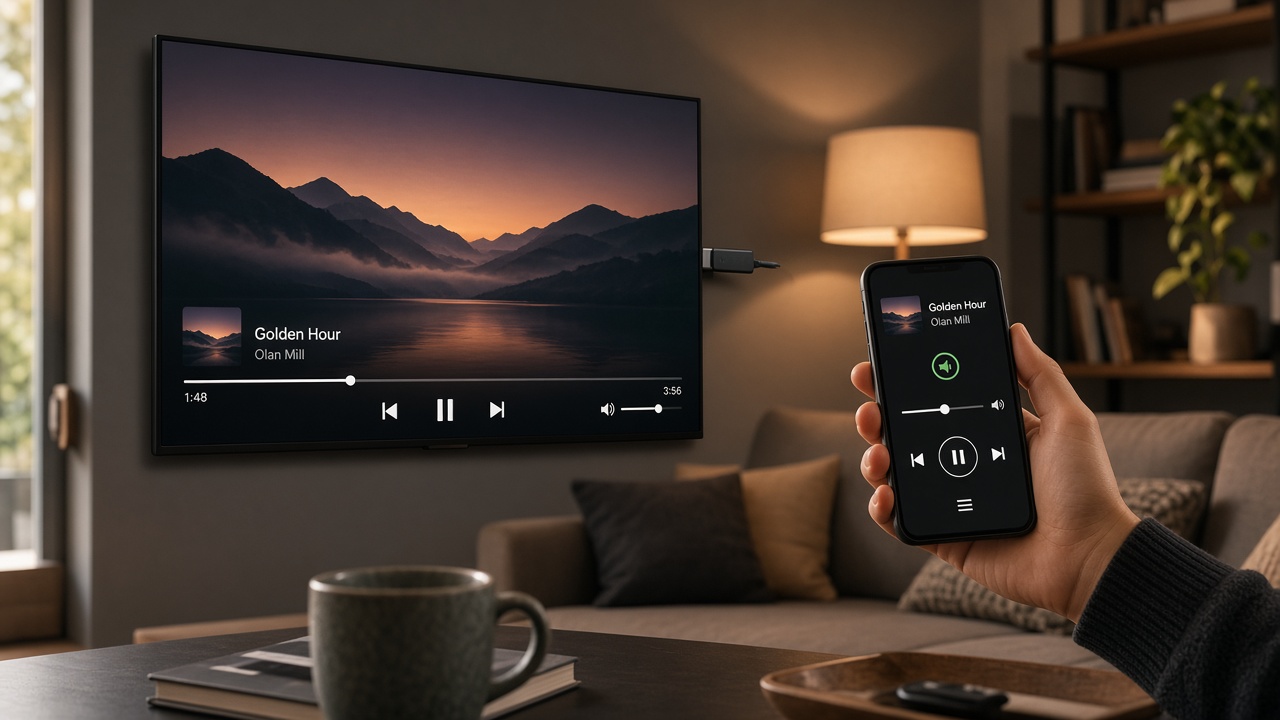
This guide covers casting from mobile or desktop, why a device might not appear, volume quirks on some Android versions, and how Chromecast differs from Bluetooth or CarPlay. Keep Premium rules in mind for offline files; casting itself streams from the network.
Spotify Chromecast vs plain Bluetooth
Bluetooth pairs headphones or a speaker as a local audio sink. Chromecast / Google Cast sends the stream to a networked device so your phone can lock, take a call, or leave the room while music continues. That flow sits inside Spotify Connect. If Connect never lists your stick, the problem is almost always Wi‑Fi isolation, power, or an outdated Cast firmware—not a missing cracked APK.
How to Chromecast Spotify (phone or tablet)
- Put the phone and the Chromecast / Cast TV on the same Wi‑Fi (avoid guest networks that block device discovery).
- Open the official Spotify app and start playing a song, playlist, or podcast.
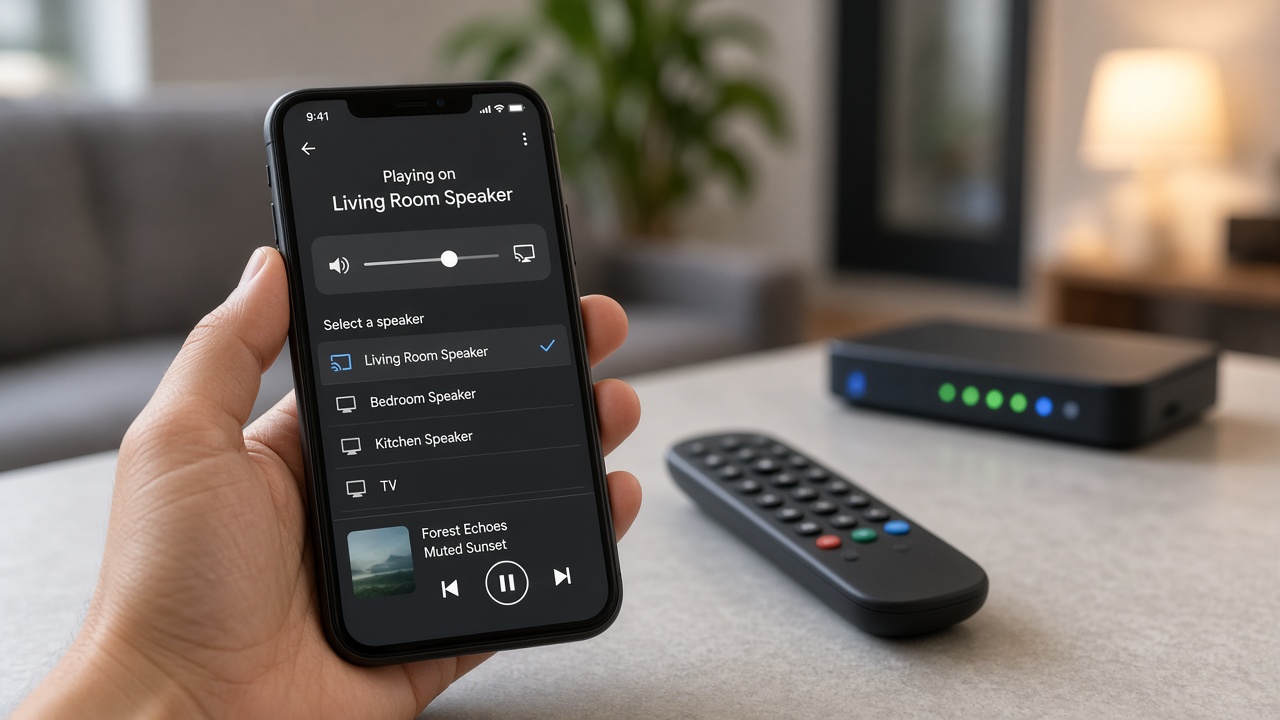
- Tap the Connect / devices icon (often on the Now Playing bar).
- Pick the target labeled with Google Cast / your TV or speaker name.
- Wait a few seconds for audio (and any visuals) to move to the big screen.
To stop, reopen the device list and choose your phone or Stop casting. Guests on the same network may take control if group session / Jam style sharing is enabled—manage that deliberately.
Desktop and web player tips
In the desktop app, open the Connect menu from the bottom playback bar and select the Cast device. On the Spotify web player in Chrome, you can sometimes cast the tab or see Google Cast devices already known on the LAN. If a stubborn speaker never appears in the mobile app, cast once from Chrome’s web player, then reopen the phone app—the device often shows up afterward.
Device not showing? Fix checklist
- Confirm Chromecast has power and internet (Home app / TV input).
- Unify 2.4 / 5 GHz confusion—phone on 5 GHz, stick on a filtered IoT SSID often breaks discovery.
- Restart Spotify, the TV/stick, and the router in that order.
- Update Spotify and Cast firmware.
- On iPhone: Settings → Spotify → enable Local Network.
- In Spotify mobile Settings → Apps and devices, try toggling Local device visibility as documented for Connect visibility.
- Reinstall Spotify from the official store only if needed (you will re-download offline music).
Still stuck? Test another network. Buffering on Cast usually means weak Wi‑Fi—see Spotify buffering for bitrate and cache tips that also help living-room streams.
Volume, video, and Premium notes
Some Android builds limited phone volume control while casting to TVs; use the TV remote or update the OS. Music videos and video podcasts need enough bandwidth—drop quality under Media settings if the picture stutters. Casting does not bypass market restrictions or grayed tracks. Offline downloads play from the phone storage path; for pure Cast reliability, stay online with a healthy connection and sensible Spotify audio quality.
Chromecast Audio and “no longer works” messages
Older hardware may lose Connect support over time. If Spotify says a device no longer works, check Spotify’s Connect support list and the manufacturer. Replacing a dead stick beats installing unofficial patches that steal accounts.
Party-friendly casting habits
- Start a Jam if friends should queue songs while Cast plays the room speakers.
- Use a private session if you do not want the living-room queue on Friend Activity.
- Sign out of shared tablets after the party—see Spotify sign out.
Living-room setup that rarely fails
Place the Cast stick on a powered HDMI port that the TV does not cut when “instant on” sleeps oddly. Prefer 5 GHz when the stick sits near the router; use 2.4 GHz only if distance demands it—and put the phone on that same SSID. Disable AP/client isolation on mesh guest profiles. Name the speaker clearly (“Living TV Cast”) so you do not tap a bedroom stick by mistake during a party.
If you also use Sonos, smart displays, or soundbars with dual Bluetooth + Cast, pick one path per session. Mixing Bluetooth to the bar while Connect targets the TV creates confusing dual audio. For car listening, Cast is the wrong tool—use the car guides instead of forcing a living-room stick into travel mode.
When relatives visit, create a short Jam on the Cast target rather than handing out your password. Afterward, review “too many devices” style sessions and remove stale Connect clients so the next movie night starts clean.
FAQ
Does Chromecast need Premium?
Casting works on Free with Free limitations (ads, shuffle rules). Premium unlocks on-demand and downloads separately.
Can I cast from iPhone?
Yes—same Connect picker; enable Local Network permission.
Why is there sound delay?
Wi‑Fi congestion or TV processing. Wired Ethernet to the streamer and fewer 4K streams on the same AP help.
Keep devices on one LAN, pick the Cast target from Connect, and you have a stable spotify chromecast setup without risky third-party cast apps.